 how-to
AI Security Camera Installation Troubleshooting Guide
Table of Contents
- Start With a Systematic Diagnostic Flow for AI Security Camera Installation Issues
- What You'll Need Before You Begin Troubleshooting
- Fix an AI Camera Not Connecting to Wi-Fi
- Resolve PoE Security Camera Power Issues
- Why Your Security Camera Keeps Going Offline
- Troubleshoot AI Camera False Alerts and Missed Detections
- Check Cables, Connections, and Image Quality
- When to Escalate, Replace Equipment, or Call an Installer
- Frequently Asked Questions
Last Updated: October 17, 2026
Start With a Systematic Diagnostic Flow for AI Security Camera Installation Issues
Most AI security camera installation issues come from four places: the camera, the network, the recorder, or the AI processing layer. Isolate which one failed before touching a setting.
Here is the diagnostic flow we use on every service call:
- Camera: Is it powered? Does the status light blink?
- Network: Can the recorder or app see the camera's IP address?
- Recorder: Is the channel enabled and recording?
- AI processing: Are alerts firing, and are they accurate?
Work top to bottom. Stop at the first failure.
Separating Camera, Network, Recorder, and AI-Processing Faults
Fault isolation means proving which component failed by testing one link at a time, from the camera toward the AI layer.
- Camera fault: No status light, no link light, or a lens that never focuses.
- Network fault: Camera powers up but never appears in the device list.
- Recorder fault: Camera appears in the list but the channel shows no video.
The CISA guidance on securing smart devices is worth a read before you start. It covers basic network hygiene for connected cameras.
A Symptom-to-Test Decision Tree You Can Run in Order
Use this table as a field checklist: symptom, fastest test, and what pass or fail tells you.
| Symptom | First test | Pass looks like | If it fails |
|---|---|---|---|
| No status light, no link light | Swap to a known-good PoE port and cable | Link light steady, camera boots | Camera or PoE source fault, test camera on a bench injector |
| Camera powers but never appears in device list | Ping the camera's IP from a laptop on the same VLAN | Replies within a few milliseconds | Network path, VLAN, or IP conflict, check switch MAC table |
| Camera appears in recorder but channel shows no video | Open the camera's web interface directly | Live stream plays in browser | Recorder-side stream profile or codec mismatch |
| Video records but AI alerts are wrong or missing | Review the analytics event log for the last 24 hours | Events match actual activity | AI configuration, zone, or model issue, move to calibration |
| Camera drops offline at the same time daily | Log the drop times for 3 days and compare to power events | No pattern | Power draw spike or scheduled network task |
Run the tests in order. Do not tune AI while the camera is still dropping offline, calibration on an unstable stream is unreliable.
Worked Example: Offline Camera That Records Fine
A common pattern: the camera shows offline in the app, but the recorder still has footage from that channel. That points to the network path between the app and the camera, not the camera.
- Confirm the recorder is still recording that channel. If yes, the camera and its cable to the recorder are healthy.
- From a laptop on the same network as the recorder, ping the camera. If it replies, the camera is reachable on the LAN.
- Check the router's port forwarding or the remote-access service. A changed WAN address or an expired DDNS entry will make the app report offline while local recording continues.
- If the ping fails, check the switch port's MAC address table for the camera. A missing entry means the link is down, reseat the cable and retest.
This fault gets misdiagnosed as a dead camera. The camera was never the problem; the path to it was.
What You'll Need Before You Begin Troubleshooting
Gather these tools first, running back and forth for gear wastes more time than the fix.
- The camera's mobile app or recorder login
- A known-good Ethernet cable
- A cable tester
Also note your PoE switch model and total power budget for the power section below.
Check the camera's firmware version before changing anything, outdated firmware causes more "mystery" faults than most people expect.
Fix an AI Camera Not Connecting to Wi-Fi
An AI camera not connecting to Wi-Fi usually fails for one of three reasons: weak signal at the mount, channel interference, or a credential mismatch. Test it indoors near the router first.
If it connects there and fails at the mount, the problem is signal, not setup, a test that saves hours.
Signal Strength, Interference, and Bandwidth Checks
Signal strength measures how cleanly the camera's radio hears the access point. Below roughly -70 dBm, most cameras get unreliable.
Check these in order:
- Distance: Walls, brick, and metal siding eat signal fast. Every wall costs you.
- Channel congestion: Neighboring networks on the same channel cause dropouts. Switch to a less crowded channel.
- Bandwidth: Too many devices on one access point slows video streams. Move cameras to a dedicated network if you can.
The FCC guide to Wi-Fi interference explains what causes interference and how to reduce it.
Resolve PoE Security Camera Power Issues
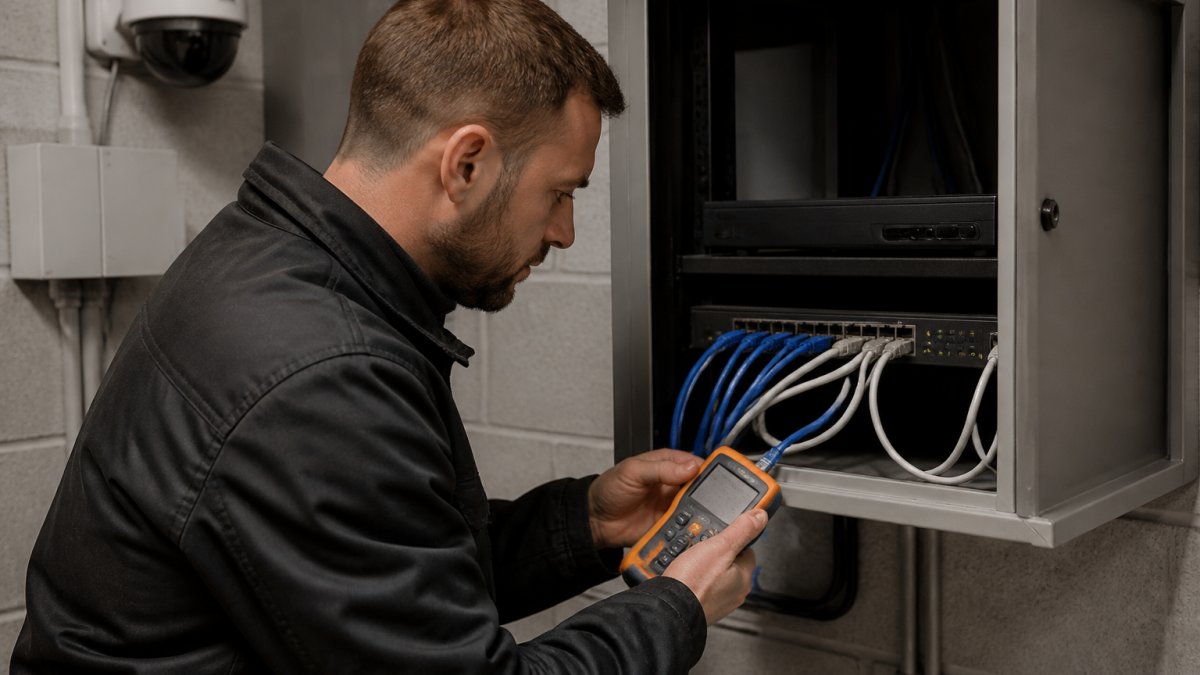
PoE security camera power issues show up as cameras that reboot randomly, fail at night, or never power on. The cause is almost always an overloaded power budget, an incompatible switch, or an overlong cable run.
PoE Power Budgets, Switch Compatibility, and Cable-Length Limits
A PoE power budget is the total wattage a switch can deliver across all ports at once. Add up every camera's draw and compare.
- Budget: If cameras total more than the switch's budget, the last ones to boot will fail. Check the switch spec sheet.
- Standards: PoE (802.3af) delivers less power than PoE+ (802.3at). A pan-tilt-zoom camera with heaters may need PoE+.
- Cable length: Ethernet runs should stay under 100 meters (about 328 feet). Past that, voltage drops and cameras brown out.
A common mistake is daisy-chaining cameras through a single run. Don't. Each camera needs its own home run to the switch.
Why Your Security Camera Keeps Going Offline
A security camera keeps going offline when its connection drops and reconnects repeatedly.
Start with the cable. Wiggle the connector at both ends while watching the live view.
Next, check for IP conflicts. Two devices with the same address will knock each other offline in a loop.
Then check the router's DHCP lease time. Short leases cause cameras to drop and re-request addresses.
Troubleshoot AI Camera False Alerts and Missed Detections
AI camera false alerts come from detection zones set too broadly, sensitivity too high, or the model misreading shadows and headlights.
Fix false alerts first, because they train your team to ignore real ones.
- Tighten detection zones. Exclude sidewalks, trees, and roads.
- Lower sensitivity in steps, then test for a day.
- Set object filters. Tell the camera to alert on people and vehicles only.
For missed detections, widen the zone slightly and confirm the camera's field of view covers the approach path.
The NIST guide to video surveillance systems covers detection and image quality standards in plain terms.
How the AI Layer Actually Decides to Alert
An AI camera does not alert on motion alone. It runs a pipeline: motion wakes the analytics, the model classifies what it sees, the detection zone filters out events outside the region of interest, and the threshold decides whether the confidence score triggers an alert. A false alert means a stage passed something it should have blocked; a miss means one blocked something it should have passed.
That pipeline matters because the fix depends on which stage failed:
- Motion stage: Wind, rain, insects, and headlights wake the camera constantly. Fix with schedule, sensitivity, and zone shape, not with model settings.
- Classification stage: The model labels a shadow as a person. Fix with object filters and better lighting, not with zone changes.
- Zone stage: A person walks through the frame but outside the polygon. Fix the zone, not the sensitivity.
An Ordered Calibration Procedure
Calibrate in this order, changing sensitivity before zones are set wastes a day of testing.
- Set the schedule first. Define business hours, after-hours, and weekend profiles. Most false alerts during work hours are staff and deliveries.
- Draw tight detection zones. Trace the actual approach path, walkway, driveway, door, and exclude the street, sidewalk, and tree line. Leave a small margin so a person is fully inside the zone before the alert fires.
- Set object filters. Enable person and vehicle only. Disable general motion if the camera supports it.
- Adjust sensitivity in small steps. Change one step, then run a 24-hour test. Do not change zones and sensitivity on the same day, you will not know which fix worked.
- Tune for lighting. Set a separate night profile with lower sensitivity and a shorter alert cooldown. Headlights and IR glare are the two biggest night-time false-alert sources.
- Verify with a test walk. Walk the approach path at the expected pace, at day and at night, and confirm the alert fires at the right point.
Measuring Whether a Change Helped
Do not judge calibration by feel, use the analytics event log.
- Count events per 24 hours before and after each change. A drop from dozens of night-time alerts to a handful is progress.
- Review a sample of clips, ten alerts is enough, and label each as true or false. Track the ratio, not the raw count.
- Log missed events by walking the path at a known time and confirming the alert appears. A miss is as important as a false alert.
Placement and Field-of-View Fixes That Beat Settings Changes
Some AI accuracy problems cannot be tuned away. A camera aimed at a wide plaza from 40 feet up will never reliably classify a person at the far edge. In those cases:
- Lower the camera to capture faces at the door, not the top of heads.
- Narrow the field of view with a longer lens so the subject fills more of the frame.
- Add a second camera covering the approach path rather than stretching one camera across the whole scene.
A camera aimed too high misses faces entirely, and no amount of calibration fixes a bad angle.
Check Cables, Connections, and Image Quality
Loose or damaged cables cause more camera malfunctions than any software bug. A partially seated connector can pass power but drop data, which looks exactly like a camera failure.
Run this check:
- Reseat every connector at the camera and the switch.
- Test each cable with a tester. Look for opens, shorts, and crossed pairs.
- Inspect exterior runs for UV damage, water intrusion, and rodent chewing.
If one camera looks washed out and the rest are fine, swap it with a known-good unit. If the problem follows the camera, replace it. If it stays on the port, the cable or switch is at fault.
When to Escalate, Replace Equipment, or Call an Installer
Call a professional when the fault is intermittent, multiple cameras fail at once, or the fix requires work you are not equipped for. Chasing an intermittent fault without proper tools wastes days.
Escalate in these cases:
- Multiple cameras down at once: Likely a switch, power, or network core failure.
- Fault returns after a fix: The root cause is upstream, not at the camera.
- Cable runs need replacing: Pulling new cable in a finished building is a job for an installer.
That last point is where Mt. Major Tech comes in. We provide advanced security integration services, specializing in AI-enabled surveillance, smart access control, and intrusion defense for residential and commercial clients across Northern New England, combining hardware excellence with ongoing technical support to ensure your security systems remain effective and reliable.
Frequently Asked Questions
How do you troubleshoot an AI security camera that will not connect to the network?
Work from the physical layer up. Confirm the camera has power and its status LED shows the expected state, then reseat the Ethernet cable or re-enter the Wi-Fi password. Check that the camera sits within usable signal range and that the router is not blocking its MAC address. If the camera still will not appear, log into the router or NVR to see whether a device is requesting an address. A camera that never requests an address usually has a cable, port, or power fault rather than a settings problem.
Why is my AI security camera not detecting people or vehicles?
Most missed detections trace back to setup, not hardware. Confirm object detection is enabled for the classes you care about, and check that the detection zone actually covers the walkway or driveway. Field of view matters: a camera aimed too high or too wide pushes faces and vehicles below the minimum pixel size the analytics needs. Low light also degrades detection, so verify the camera's night performance. Review recent events in the app to see whether the camera is recording motion at all before assuming the AI is failing.
What should I check if an AI camera keeps going offline?
Intermittent dropouts usually come from power or network instability. On PoE cameras, check the switch's power budget and the cable run length, since a marginal connection drops under load. On Wi-Fi cameras, measure signal strength at the camera location and look for interference from walls, metal, or nearby networks. Also review whether the camera reboots on a schedule or drops only during peak recording. If the camera goes offline at the same time each day, suspect a firmware update cycle or a network interruption rather than the camera itself.
How can I reduce false alerts from an AI security camera?
Tune the detection settings before blaming the camera. Draw detection zones that exclude roads, sidewalks, and swaying trees, and raise the minimum object size so small animals and shadows are ignored. Set a short alert delay so brief movement does not trigger a notification. If alerts still fire constantly, check lighting conditions at different times of day and adjust sensitivity per schedule. Cameras with person and vehicle classification cut false alarms sharply compared with plain motion detection, and reviewing a week of events shows which zones need tightening.
A camera that keeps dropping offline is not a nuisance. It is a hole in your security. If you have worked through this guide and the fault keeps coming back, the problem is likely in the design, not the device. Mt. Major Tech builds unified systems that combine AI surveillance, smart access control, and intrusion defense, backed by ongoing technical care. Book online with Mt. Major Tech and get a system that stays online, stays accurate, and stays supported.