 how-to
Biometric Access Control Maintenance and Troubleshooting Steps
Last Updated: November 1, 2026
Quick Summary
Biometric access control maintenance means cleaning sensors on a set schedule, checking clocks, network links, and firmware, and diagnosing failures in a fixed order. Start with the basics, then test the credential, a second user, a second reader, the controller, the network, and the door hardware. Keep logs so drift is caught early.
- Clean high-traffic readers weekly and lower-traffic readers monthly with a soft, lint-free cloth.
- Check that reader and controller clocks match, since time mismatches can block valid users.
- Run the credential test first: if a backup card or PIN works, the reader hardware is likely fine.
- Re-enroll a user only after the diagnostic tests, because re-enrollment overwrites evidence of the real fault.
- Escalate to a technician when rejections exceed baseline for over a week or a reader goes offline more than once a month.
Table of Contents
- Why Biometric Access Control Fails and How to Spot It Early
- Step 1: Check the Basics Before Touching the Hardware
- Step 2: Diagnose Common Biometric Authentication Errors
- Step 3: Clean and Handle Scanners Without Damaging Them
- Step 4: Check Software, Network Links and Integration
- Building a Biometric Reader Maintenance Schedule
- Setting Escalation Thresholds and Scheduling Your Next Service Visit
- Frequently Asked Questions
Biometric access control is supposed to be the easy part of building security. A fingerprint reader or face scanner replaces a stack of keys and cards, and it should just work.
Biometric access control is a system that uses unique physical traits, such as a fingerprint or face, to decide whether a person can open a door or enter a space.
Why Biometric Access Control Fails and How to Spot It Early
Most biometric systems do not fail all at once. They drift. A sensor gets dirty, a template degrades, or a network switch drops packets, and the symptoms show up as occasional rejections.
Watch for these early signs:
- Repeated rejections from the same people or the same door
- Longer scan times than the system used to take
- Doors that open on the second or third try
A common mistake is waiting for a total outage before acting. By then, a small problem has often turned into a locked-out shift. Logging each rejection for two weeks gives you a baseline, so a real change stands out.
Step 1: Check the Basics Before Touching the Hardware
Before you open a reader or call a vendor, rule out the simple causes. This step takes about 15 minutes and fixes more problems than people expect.
- Confirm the reader has power and shows its normal status light
- Check that the door strike or lock responds when you send a test command
- Verify the date and time on the reader and controller match
A Watch out: point here: a time mismatch can cause access schedules to block valid users without any obvious error on screen. Check the clock first.
Step 2: Diagnose Common Biometric Authentication Errors
Authentication errors fall into a few groups. Sorting the symptom into the right group tells you where to look next. The sequence below isolates the fault in order, credential, reader, network, software, door hardware, so you do not replace a reader when the real problem is a stale template or a flaky switch.
A Step-by-Step Diagnostic Flow
Work through these stages in order and stop at the first stage that fails. Each stage has a pass/fail test that takes minutes, not hours.
- Credential test. Have the affected user try an alternate enrolled finger, face, or a backup card/PIN at the same reader. If the backup credential works, the reader and door hardware are fine and the fault is in the biometric template or the user's trait capture.
- Second-user test. Have a known-good user scan at the same reader. If they also fail, the problem is the reader or its environment, not the individual.
- Second-reader test. Have the affected user scan at a different reader on the same controller. If they pass there, the original reader is the suspect; if they fail everywhere, the template or enrollment is the suspect.
- Controller and schedule test. Confirm the user is active, in the correct access group, and inside an active schedule. A time-zone or holiday-calendar misconfiguration denies valid users with no reader error at all.
- Network test. Check the link between reader and controller for packet loss or intermittent drops. A reader that goes offline briefly and recovers is usually a cabling, PoE, or switch-port issue, not a biometric one.
- Firmware and integration test. Compare reader firmware and controller software to supported versions, and check release notes for known issues introduced by the most recent update.
- Door hardware test. Send a test unlock command. If the controller grants but the strike or mag lock does not release, the fault is in the lock, power supply, or request-to-exit wiring, not the biometric reader.
Log the result of each stage with a timestamp. A pattern of failures that follows one user points to enrollment; a pattern that follows one door points to hardware or network; a pattern that follows a time of day points to schedules or network load.
Fingerprint Enrollment and Recognition Failures
Enrollment is the moment a person's trait is first stored. A poor enrollment causes problems for months afterward. If one person is rejected often, re-enroll them under controlled conditions:
- Enroll in the same spot where they will normally scan
- Capture several samples at different angles
- Use a finger they actually use for scanning, and keep the same finger consistent
If many people fail on one reader but not on others, the problem is usually the reader itself, not the enrollment. If one person fails on every reader, suspect the template and re-enroll before touching hardware.
Wet, Dry and Damaged Fingers
Finger condition causes a large share of fingerprint rejections. Dry skin, cold weather, cuts, and wet hands all change how a scanner reads a print. Cold, dry air in winter brings a spike in dry-finger complaints, and construction dust or cleaning chemicals can make prints harder to read.
Practical fixes:
- Ask the user to rub hands together or briefly wash and dry them before scanning
- Try an alternate enrolled finger if the usual one is damaged
- Offer a backup credential, such as a card or PIN, for affected users
Facial, Iris and Multimodal Readers
The same diagnostic sequence applies, but the failure modes differ by modality.
- Facial recognition. Failures cluster around lighting and camera position. Backlight from a glass door, a changed hairstyle or eyewear, and a camera that has drifted out of alignment are common causes. Check that the capture zone is lit evenly and that the camera housing has not been bumped.
- Iris readers. Users who wear glasses or contacts, or who are at an awkward height for the capture zone, fail more often. Confirm the reader is mounted at the manufacturer's specified height and that the user removes tinted or reflective eyewear if the vendor requires it.
- Multimodal readers. When a reader supports more than one trait, confirm which modality is being attempted. A user enrolled by face but scanning a finger will fail every time; check the enrollment record before troubleshooting hardware.
Do not repeatedly re-enroll a user to "fix" a failure without first running the credential and second-reader tests. Re-enrollment overwrites the template and can erase the evidence you need to find the real cause.
Sorting the Symptom
Use this quick mapping to decide where to look first:
- One user fails everywhere → template or enrollment
- Many users fail at one reader → reader surface, environment, or reader hardware
- Valid users denied at certain times → schedule, time sync, or holiday calendar
Step 3: Clean and Handle Scanners Without Damaging Them
Dirt and oil on the sensor surface are a major cause of drift. Cleaning is simple, but the wrong method can scratch the sensor or leave residue that makes matching worse.
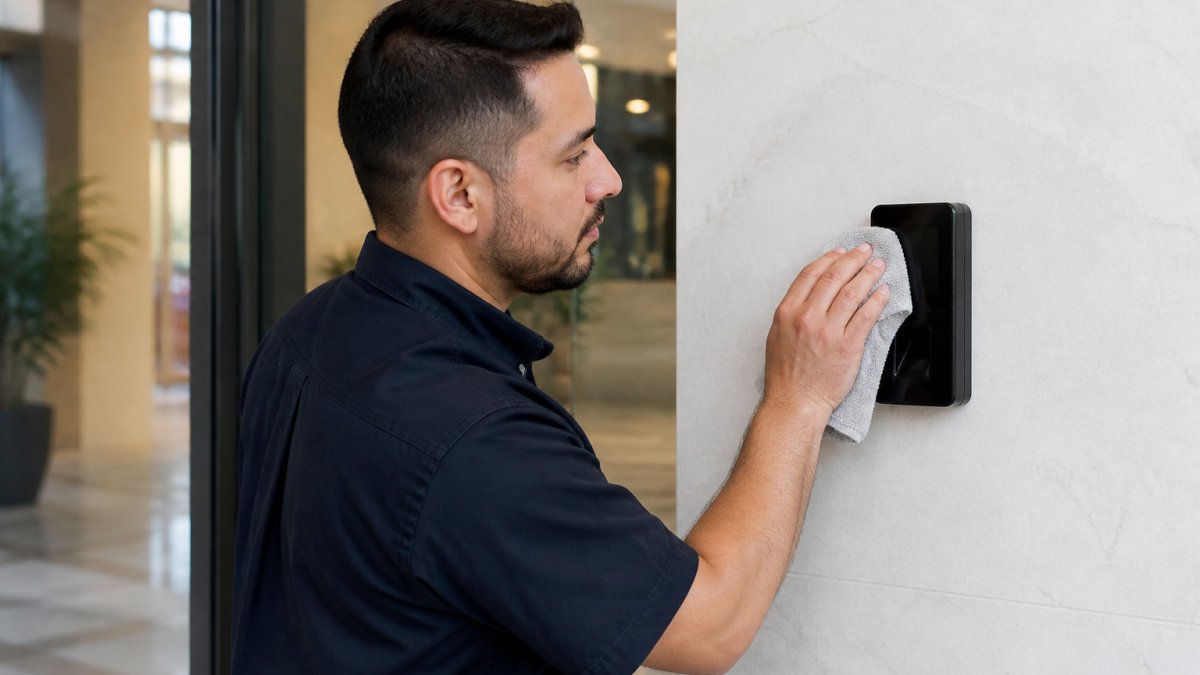
- Power down the reader or follow the manufacturer's cleaning guidance before you start
- Wipe the sensor with a soft, lint-free cloth lightly dampened with water or an approved cleaner
- Avoid abrasive pads, paper towels, and harsh solvents
Set a routine cleaning schedule, especially for readers near entrances, loading docks, or outdoor areas.
Safe handling also includes privacy. Store biometric templates according to your vendor's configuration and your organization's policy, and limit who can export or view enrollment data.
Step 4: Check Software, Network Links and Integration
Many access control failures come from the connections between parts, not the reader. Work through this list in order:
- Confirm the reader firmware and controller software are at supported, approved versions
- Review recent updates and security patches, and check release notes for known issues
- Check the network link between the reader and controller for packet loss or intermittent drops
Keep a change log. When a fault appears a week after an update, the log shows which change to examine first. Weak passwords and default admin accounts on the controller are also a security risk, so review user permissions as part of routine maintenance.
Building a Biometric Reader Maintenance Schedule
Maintenance works best when it is planned. A simple schedule prevents most surprises and gives you a record for audits. The table below turns general advice into an operating procedure by pairing each task with a frequency, an owner, and a pass/fail check.
| Task | Frequency | Owner | Pass/Fail Check |
|---|---|---|---|
| Clean sensor surfaces | Weekly for high-traffic readers; monthly for low-traffic | Facilities staff | No visible smudges, dust, or residue; test scan succeeds on first try |
| Review rejection and no-match logs | Weekly | Security or IT lead | Rejection rate within baseline; no single user or door dominates |
| Check clock and time sync | Monthly | IT | Reader and controller clocks match to the minute |
| Inspect cables, mounts, and PoE | Quarterly | Installer or technician | No loose connectors, no exposed cable, PoE draw within spec |
| Review firmware and patches | Quarterly | IT and vendor | All devices on supported versions; release notes reviewed |
| Re-test enrolled users | Twice yearly | Security lead | Sample of users passes on first attempt at their normal reader |
| Full system audit and access review | Annually | Security and compliance | Inactive users removed; permissions match current roles |
Inspection Checklist by Interval
Use these checklists so a task is not marked complete until the check passes.
Daily (front-desk or security staff, 2 minutes per reader)
- Reader status light shows normal
- No visible damage or tampering
- Door closes and latches normally
Monthly (facilities and IT)
- Clean sensor per manufacturer guidance
- Confirm time sync across readers and controller
- Review access logs for gaps, unexplained grants, or clusters of denials
Quarterly (technician and IT)
- Inspect cabling, connectors, and mounts
- Check power supply and PoE budget
- Review firmware and patch status against vendor advisories
Annually (security and compliance)
- Full access review: remove departed users, reconcile groups to roles
- Re-verify enrollment quality for long-tenured users
- Confirm biometric template storage and export controls match policy
Measuring Performance and Setting Escalation Thresholds
A schedule is only useful if you can tell when it is failing. Track these indicators and set thresholds that trigger escalation.
- False rejection rate (FRR). The share of legitimate attempts that are denied. Establish a baseline over several weeks, then escalate when the rate rises above baseline for more than a week.
- False acceptance rate (FAR). The share of impostor attempts that are granted. Any unexplained grant is a security event and should be escalated immediately, not trended.
- Enrollment failure rate. The share of enrollment attempts that fail to produce a usable template. A rising rate points to reader condition or enrollment procedure.
Set the thresholds in writing and post them where staff can see them. A reader that exceeds baseline rejections for a week, goes offline more than once a month, or produces an unexplained grant should be escalated to a technician with logs attached.
Records, Privacy and Audit Readiness
Record each task with a date, initials, and the pass/fail result. Auditors and insurers often ask for proof that access control is maintained, and a clean log answers that question quickly.
Keep biometric templates under the vendor's recommended configuration and your organization's policy, limit who can export or view enrollment data, and store maintenance records separately from biometric data so a log review does not expose templates.
Setting Escalation Thresholds and Scheduling Your Next Service Visit
Not every problem needs a technician, but some do.
Consider calling a professional when:
- Rejections on one reader rise above your baseline for more than a week
- A reader goes offline more than once in a month
- Doors fail to unlock after a valid authentication
Frequently Asked Questions
How often should biometric scanners be cleaned? Clean high-traffic readers weekly and lower-traffic readers monthly.
What is a normal false rejection rate? Acceptable rates depend on the system and your security policy.
Can I fix a biometric reader problem myself? Basic checks, cleaning, and log reviews are safe for most staff.
Should I keep a backup credential for biometric access? Yes.
Frequently Asked Questions
What are the most common causes of biometric scanner failure?
The most frequent causes are dirt, oil and residue on the sensor, damaged or worn sensor surfaces, loose wiring or power problems, outdated firmware, and improper enrollment. Start by inspecting the sensor surface and cable connections, then review the device logs for repeated read errors. Many failures that look like hardware faults turn out to be dirty sensors or enrollment templates recorded under poor conditions, which are quick to correct without replacing any equipment.
How often should biometric access control systems be serviced?
Most facilities should clean sensors monthly and run a full inspection each quarter, covering readers, controllers, power supplies, network connections and software versions. High-traffic doors, outdoor readers and units exposed to weather may need more frequent checks. Keep a written log of every visit so you can spot patterns, such as a particular reader failing more often than others, and adjust the schedule to match real usage.
How do you clean a fingerprint scanner without damaging the sensor?
Power down the reader if the manufacturer recommends it, then wipe the sensor with a soft, lint-free cloth lightly dampened with isopropyl alcohol or the cleaner the manufacturer specifies. Avoid abrasive pads, paper towels, harsh chemicals and excessive pressure, since these can scratch or degrade the sensor surface. Let the surface dry fully before testing the reader with an enrolled finger.
What should I do if my biometric reader is rejecting authorized users?
First confirm the reader is clean and the user's finger is clean and dry or lightly moistened, depending on the sensor type. Ask the user to try several placements. If rejections continue, check whether the enrolled template matches the user's current fingerprint, since injuries and heavy wear can change it, and re-enroll the user if needed. Persistent rejections across several users point to a reader setting, lighting or software problem rather than individual finger conditions.