 how-to
How to Install AI Security Cameras for Homeowners
Table of Contents
- What You'll Need Before You Start
- Best Practices for Security Camera Placement
- Step 1: Mount and Power Your AI Security Cameras
- Step 2: AI Camera Person Detection Setup
- Step 3: Configure Storage, Bandwidth, and Smart Alerts
- AI Security Camera Privacy Laws for Homeowners
- Common Mistakes to Avoid
- Conclusion: When to Call a Professional
- Frequently Asked Questions
Last Updated: September 27, 2026
What You'll Need Before You Start
Installing AI security cameras for homeowners comes down to five items: cameras with on-board AI processing, a recorder or cloud plan, a power source, a network connection, and basic tools. Get these wrong and the smart features never work as promised.
Most people buy the camera first and figure out the rest later. That order costs time and money.
Your pre-install checklist:
- AI cameras with person and object detection built in
- NVR or DVR for local recording, or a cloud subscription
- Ethernet cable (Cat6) or strong Wi-Fi coverage at each spot
- PoE injector or PoE switch if you go wired
- Drill, bits, ladder, cable clips, weatherproof junction boxes
- A phone or laptop for the setup app
Best Practices for Security Camera Placement
Good placement follows one rule: cover the approach, not the face. Put cameras where intruders must pass, and you catch them before they reach a door.
- Mount 2.5 to 3 meters (8 to 10 feet) high to avoid tampering
- Angle down slightly so you capture faces, not just the tops of heads
- Cover entry points first: front door, back door, driveway
- Add overlapping views so no path has a blind spot
- Keep cameras out of direct sun and away from tree branches
- Point away from neighbors' windows and public sidewalks
Step 1: Mount and Power Your AI Security Cameras
Power is where most DIY installs stall. AI cameras need a stable connection, and battery models cut features to save power.
| Power Method | Best For | Trade-Off |
|---|---|---|
| PoE (wired) | Always-on AI, 4K, no lag | Needs cable runs |
| Wi-Fi | Renters, quick setups | Drops with weak signal |
| Battery | No wiring at all | Fewer AI features, charging trips |
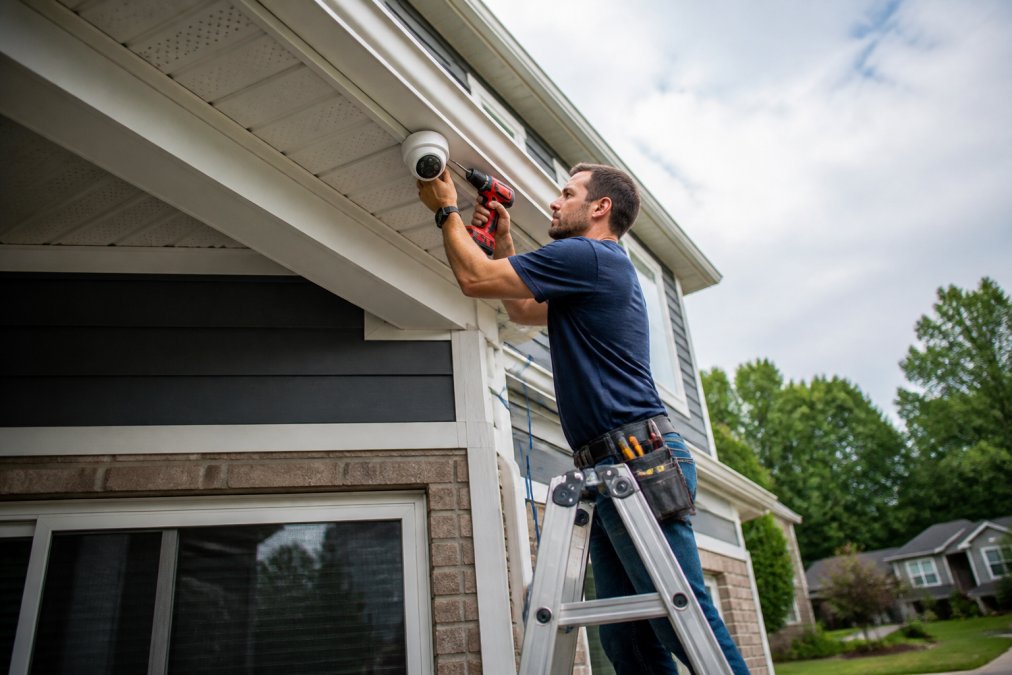
To mount and power each camera:
- Mark the mount height with a pencil
- Drill pilot holes and set the anchors
- Screw the base plate in tight
- Run Cat6 cable back to your PoE switch or NVR
- Clip the cable every 40 to 50 centimeters (16 to 20 inches)
- Seal the connection with a weatherproof box
- Snap the camera onto the base and aim it
Step 2: AI Camera Person Detection Setup
AI camera person detection setup takes about 15 minutes per camera once the app is open. Detection ships on, but defaults trigger on everything that moves.
Here's how to tune it:
- Open the app and find the detection or analytics menu
- Set the detection type to "person" and "vehicle" only
- Draw motion zones around your driveway, doors, and walkways
- Set a minimum object size so a passing cat doesn't trigger an alert
- Adjust sensitivity down until only real events fire
- Set a schedule so daytime foot traffic doesn't wake you
Step 3: Configure Storage, Bandwidth, and Smart Alerts
Storage and bandwidth decide whether your system feels smooth or sluggish, and whether your AI footage stays on your property or someone else's server. Every AI camera has three dials that drive both: resolution, frame rate, and bitrate. Here is what a typical home camera consumes at common settings:
| Setting | Storage per camera per day | Upload bandwidth (cloud) |
|---|---|---|
| 1080p, 15 fps, 2 Mbps | ~20 GB | ~2 Mbps sustained |
| 1080p, 30 fps, 4 Mbps | ~40 GB | ~4 Mbps sustained |
| 4K, 15 fps, 8 Mbps | ~80 GB | ~8 Mbps sustained |
| 4K, 30 fps, 16 Mbps | ~160 GB | ~16 Mbps sustained |
- Cap cloud uploads to event clips only. Person- and vehicle-triggered uploads use a fraction of 24/7 streaming. A camera that fires 30 events a day at 15 seconds each uploads roughly 90 seconds of footage, not 86,400.
- Run local-first and use the cloud as backup. Record continuously to the NVR, and push only AI-tagged events to the cloud. This is the privacy-first configuration most guides skip: your full footage never leaves the house, and the cloud only holds the clips you actually care about.
- Set the NVR as the primary recording target. Confirm in the app that "record to NVR" is on and "record to cloud" is off or set to events only.
- Disable cloud AI analytics if your camera offers on-device processing, so the video frame is analyzed on the camera, not uploaded.
- Turn off thumbnail previews in push notifications if your camera app sends them through a cloud relay, many apps do by default.
- Put the NVR on a UPS so a power blip does not corrupt the drive or drop recording.
- Encrypt the NVR drive if your model supports it, and set a strong admin password, default passwords are the number one cause of home camera breaches.
AI Security Camera Privacy Laws for Homeowners
AI security camera privacy laws are where most homeowner guides wave their hands and move on. That is a mistake: a camera that records audio, captures a neighbor's window, or runs facial recognition can create real liability. Here is the framework that applies to a homeowner mounting cameras on their own house.
-
One-party consent states (for example, Texas, Florida, and most of the South and Mountain West) allow recording a conversation if at least one party, you, consents.
-
All-party consent states (California, Connecticut, Florida for some contexts, Illinois, Maryland, Massachusetts, Michigan, Montana, Nevada, New Hampshire, Pennsylvania, and Washington) require everyone in the conversation to consent. In these states, a camera with a microphone pointed at a shared driveway or sidewalk can create exposure.
-
Pointing a camera into a neighbor's window, bedroom, or enclosed backyard can trigger intrusion-upon-seclusion claims, a civil tort, not just a criminal one.
-
Recording a public sidewalk or street from your own property is generally allowed, but persistent, targeted recording of a specific person can raise stalking or harassment issues in some states.
-
Apartment dwellers recording shared hallways or common areas may be subject to landlord rules and, in some states, tenant-privacy statutes that override the general rule.
A practical pre-mount checklist:
- Look up whether your state is one-party or all-party consent for audio. Disable the mic if it is all-party.
- Walk your property line and note every camera angle that touches a neighbor's window, door, or fenced yard. Reposition before mounting.
- Check whether your state has a biometric privacy law (Illinois, Texas, Washington are the ones most often cited). If so, disable face recognition.
- If you rent, read your lease for camera clauses and check with your landlord before installing anything wired.
- Keep a simple log of camera positions and settings. If a dispute ever arises, documentation helps.
Common Mistakes to Avoid
The same mistakes show up on almost every service call. Each is cheap to prevent and costly to fix.
- Skipping firmware updates. Old firmware breaks detection and leaves security holes.
- Ignoring encryption. Turn on encrypted streams so footage can't be intercepted.
- Maxing out sensitivity. It causes false positives and alert fatigue.
- Mixing brands. Recorders and cameras from different makers often lose AI features.
- No local backup. Cloud-only setups lose access when the service goes down.
- Forgetting the network. Weak Wi-Fi and old routers cause lag and dropped clips.
Conclusion: When to Call a Professional
A single-camera setup is a weekend project. A whole-property system with multiple buildings, access control, and compliance needs is not.
Frequently Asked Questions
Do AI security cameras need Wi-Fi to work?
Not always. Many AI security cameras can run on a wired PoE connection, which carries both power and data over a single Ethernet cable. Wired setups are more reliable for AI processing because they avoid Wi-Fi congestion and keep latency low. If you go wireless, use a dedicated 5 GHz band and place the camera within strong signal range. For homes with multiple cameras, PoE is usually the better long-term choice.
Can I add AI features to my existing security cameras?
In some cases, yes. If your current cameras stream to an NVR or DVR that supports video analytics, a firmware update or a compatible AI module may unlock person detection, object recognition, and smart alerts. Older analog cameras often cannot support these features because their image sensors and processors are too limited. Before buying new hardware, check whether your recorder has an open slot for AI processing or a software upgrade path.
What are the privacy implications of using AI security cameras at home?
AI security cameras collect video, timestamps, and sometimes facial recognition data, which can be subject to state privacy laws. If your cameras capture a neighbor's yard, a public sidewalk, or shared space, you may need to adjust motion zones or add privacy masking. Local storage with encryption reduces cloud exposure. Check your state's wiretap and surveillance statutes, and avoid pointing cameras into areas where people have a reasonable expectation of privacy.
Do I need a professional to install AI security cameras?
You can install a basic AI camera yourself if you are comfortable running cables and configuring an app. However, multi-camera systems with PoE, NVR setup, and custom motion zones often benefit from professional installation. A pro can also help with legal compliance, false positive tuning, and integrating AI cameras with existing alarms or access control. If your home has complex wiring or you need ongoing support, hiring an integrator saves time and avoids costly mistakes.