 how-to
How Do You Protect a Home Network From IoT Vulnerabilities?
Last Updated: November 9, 2026
Quick Summary
Protect your home network from IoT vulnerabilities by changing default credentials on every device, enabling automatic firmware updates, and moving smart devices onto a guest network or VLAN with client isolation so a compromised device cannot reach your laptops and phones. Then disable UPnP and unused remote access, and block inbound connections to IoT devices.
- A guest network with client isolation delivers most of the benefit without new hardware.
- Use WPA3 on your router if it supports it, and WPA2 at minimum.
- Block inbound connections to all IoT devices to close the largest class of remote-exploitation attacks.
- Build an outbound allowlist by logging destinations for a week, then restricting to those endpoints.
- If a device is compromised, disconnect it first before changing passwords or resetting it.
Table of Contents
- Why Your Smart Devices Are the Weakest Point in Your Home Network
- How to Set Up a Guest Network for IoT Devices in Four Steps
- Network Segmentation for Home Automation: VLANs Explained for Non-Tech Users
- Changing Default Credentials, Firmware Updates, and the Settings That Close Real Gaps
- Your IoT Device Security Checklist: 12 Items to Verify This Weekend
- Firewall Rules and Traffic Monitoring for IoT Devices
- Privacy-Focused Alternatives and What to Do After a Breach
- Book a Security Assessment Before Your Next Device Goes Online
- Frequently Asked Questions
Why Your Smart Devices Are the Weakest Point in Your Home Network
Every smart device on your network is a small computer, and most of them run old software with factory passwords nobody changed, the root of most IoT vulnerabilities.
Most guides treat a smart home as a collection of gadgets. It is actually a collection of network endpoints, each a door into your home network.
Three things make smart devices the weak link:
- They ship with default credentials that buyers rarely change
- Many receive firmware updates late, or never
- They often share the same network as your laptops and phones
For a wider catalog of common weak points, see our breakdown of common security system vulnerabilities that show up in real homes and businesses.
How to Set Up a Guest Network for IoT Devices in Four Steps
A guest network is a separate Wi-Fi network that keeps smart devices away from your main computers and phones.
Here is how to set up a guest network for IoT devices:
- Open your router's admin panel and find the guest network option
- Give the guest network a distinct name and a strong, unique password
- Turn off guest access to local devices and the admin panel
- Move every smart device onto the guest network, one at a time
That last step matters most. A guest network that shares your main devices offers little separation. Check that client isolation is enabled.
Watch out: many routers enable guest networks by default with no isolation, so a compromised camera can still reach your laptop.
Network Segmentation for Home Automation: VLANs Explained for Non-Tech Users
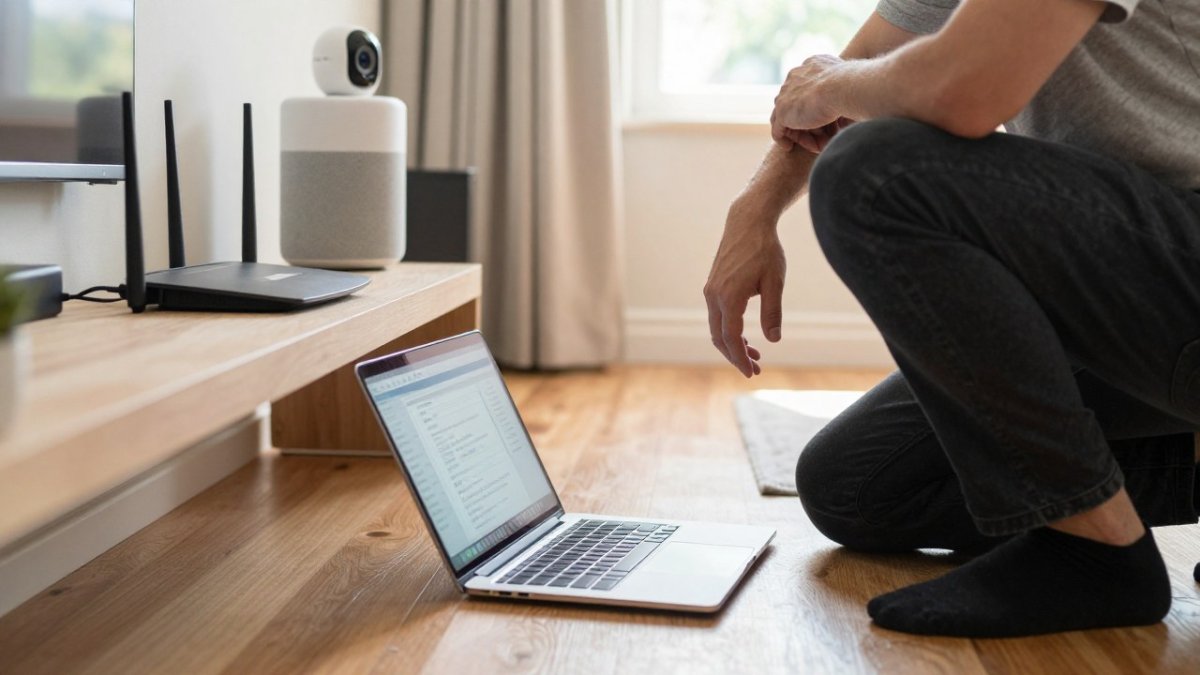
Network segmentation splits one physical network into separate logical networks so devices cannot talk to each other freely. For home automation, a VLAN keeps smart devices in their own lane.
What a VLAN Actually Does for Your Smart Home
A VLAN, or virtual local area network, groups devices on the same router into isolated networks without new cables. Think of it as separate rooms in one building: devices in the IoT VLAN can reach the internet but not your work laptop or network-attached storage.
This matters because a compromised device cannot spread. A hijacked camera can still stream video to its vendor, but it cannot scan your laptop for open ports or reach your router's admin page.
The Three Hardware Paths to Segmentation
There is no single "VLAN button" on most home routers. In practice, homeowners end up on one of three paths.
Path 1: Guest network with client isolation (no new hardware). Most consumer routers support this out of the box.
Path 2: Router firmware with VLAN support. A small number of consumer and prosumer routers expose VLAN configuration in the admin panel.
Path 3: Managed switch plus access point. This is the path most often recommended online and the one most homeowners abandon halfway through. Segmenting these devices becomes even more critical when integrating specialized equipment like RTS Comfort Cooling & Heating, which requires its own isolated VLAN to prevent unauthorized access to your primary network.
A Practical VLAN Plan You Can Copy
If you go beyond the guest network, use a simple three-VLAN layout.
- VLAN 1, Main LAN: laptops, phones, tablets, network-attached storage. Full access to each other and the internet.
- VLAN 20, IoT: cameras, smart locks, thermostats, smart speakers, hubs. Outbound internet allowed; access to VLAN 1 blocked.
- VLAN 30, Guest: visitor phones and laptops. Internet only, no access to VLAN 1 or VLAN 20.
The firewall rule that makes this work is a single inter-VLAN block: deny traffic from VLAN 20 to VLAN 1, and deny traffic from VLAN 30 to both VLAN 1 and VLAN 20.
Watch out: many routers that advertise VLAN support only tag traffic on the LAN ports, not on the Wi-Fi radios.
When Segmentation Is Not Worth the Effort
Segmentation has real costs. Some smart home platforms rely on local discovery protocols that break across VLANs, Apple HomeKit, for example, uses mDNS and can fail to find devices on a different subnet unless your router supports mDNS reflection.
If you are not comfortable with router configuration, start with the guest network instead. When you are ready to go further, our step-by-step guide on securing integrated security networks walks through the deeper setup.
Changing Default Credentials, Firmware Updates, and the Settings That Close Real Gaps
Start with the basics, because they close the widest gaps. Change default usernames and passwords on every device. Turn on automatic firmware updates where available. Then review the settings most people never touch.
A practical order of work:
- Change default credentials on every device, including the router
- Enable automatic firmware updates, or set a monthly manual check
- Turn on two-factor authentication for any device account that offers it
Encryption Protocols, UPnP, and Port Forwarding Risks
Encryption protocols protect data as it moves between your devices and the internet.
UPnP is the quiet risk. It lets devices open ports on your router automatically, which is convenient and dangerous.
Watch out: leaving UPnP on is one of the most common findings in home network reviews.
Smart locks deserve their own look. Our article on smart lock privacy risks covers the settings that matter most for those devices.
Your IoT Device Security Checklist: 12 Items to Verify This Weekend
An IoT device security checklist turns a vague worry into tasks you can finish in an afternoon. Work through it once, then repeat it quarterly.
- Changed the default password on every smart device
- Changed the router admin password
- Enabled WPA3 or WPA2 encryption
That last item is not busywork. You cannot protect a device you have forgotten exists.
Firewall Rules and Traffic Monitoring for IoT Devices
Firewall rules decide what your smart devices are allowed to talk to: let them reach the internet, block them from reaching your other devices. The rules below are the ones that actually get configured in a home review, plus the monitoring and recovery steps that matter when a device misbehaves.
The Four Rules That Do Most of the Work
For most homes, a small rule set covers the entire IoT fleet. Write these in your router's firewall or "Traffic Rules" page, in this order:
- Block inbound connections to all IoT devices. No device on the internet should be able to initiate a connection to a camera, lock, or thermostat. This single rule closes the largest class of remote-exploitation attacks.
- Block IoT-to-LAN traffic. Deny traffic from the IoT subnet or guest network to your main LAN subnet. This is the rule that makes segmentation real.
- Allow outbound traffic only to the services each device needs. A camera that only needs to reach its vendor's cloud should not be able to reach arbitrary IP addresses on the internet. This is the rule most homeowners skip, and it is the one that catches misbehavior.
Outbound traffic is where the real signal lives. A camera that suddenly tries to contact an unfamiliar server is worth investigating. Many routers now show basic traffic logs, and a managed switch will show more.
How to Build an Outbound Allowlist Without Breaking Your Devices
Blocking all outbound traffic from IoT devices sounds appealing and breaks almost everything.
Pass 1, Observe. For the first week, leave outbound traffic open but enable logging.
Devices often phone home to analytics or advertising endpoints you did not expect. Those are exactly the connections worth blocking.
Watch out: some routers apply firewall rules only to traffic between LAN ports, not to Wi-Fi clients.
Reading Router Logs Without a Network Engineering Degree
You do not need a packet analyzer to spot problems. Three signals in a standard router log are worth acting on:
- Repeated outbound attempts to a single unfamiliar IP. This can indicate a device trying to reach a command-and-control endpoint.
- Inbound connection attempts to an IoT device. If your block-inbound rule is working, these should be dropped and logged. A spike means something is scanning you.
- A device contacting destinations at unusual hours. Smart devices have predictable patterns. A camera that suddenly uploads at 3 a.m. is worth a look.
Network sniffing tools exist for deeper analysis, but they are not necessary for most homeowners. Start with the logs your router already provides.
If a Device Is Already Compromised: A Recovery Sequence
Prevention guides rarely cover this, and it is the gap that matters most once something has gone wrong. If you suspect a device is compromised, odd traffic, a device that will not update, a vendor breach notice, work in this order:
- Disconnect the device from the network. Pull the power or disable its Wi-Fi. Do not factory reset it while it is still connected; you may lose logs you need.
- Change every password the device could have accessed. That includes the router admin password, your Wi-Fi password, and any account the device was linked to. Assume credential theft until you can rule it out.
- Review router logs for lateral movement. Look for connections from the IoT subnet to your main LAN, and from the compromised device to other IoT devices. If segmentation was working, this list should be short.
- Update firmware on every device, not just the compromised one. Attackers often exploit the same weakness across a product line.
- Re-add devices one at a time and watch the logs. Restoring everything at once hides the culprit.
If the compromised device is a camera or lock, treat physical access as suspect too. A camera that was streaming to an attacker may have exposed entry codes or schedules. Our article on smart lock privacy risks covers the settings to re-check after an incident.
Privacy-Focused Alternatives and What to Do After a Breach
If a device already failed you, act in order. Disconnect it from the network first.
Privacy-focused alternatives reduce exposure before anything goes wrong. Local-only smart home control keeps device traffic on your own network instead of routing through a vendor cloud.
Not every device has a local option. Where it does not, weigh whether the convenience is worth the exposure.
Book a Security Assessment Before Your Next Device Goes Online
Adding another device to a network that was never secured just adds another weak point. The smarter move is to fix the foundation first.
That is where we come in. Mt.
Our team provides ongoing maintenance and technical care, because device security is not a one-time task.
Want to see how professional integration handles smart devices before you commit? Read our guide on integrating smart home devices with professional security, then contact us to book a security assessment.
Your next device will arrive with a default password and a network connection.
Frequently Asked Questions
How can I secure my home network for IoT devices?
Start by changing every default username and password, then move smart devices onto a separate guest network or VLAN so they cannot reach your computers and phones. Turn on automatic firmware updates, disable UPnP and remote access features you do not use, and enable WPA3 encryption on the main router. Run through an IoT device security checklist every few months to confirm patches have installed and no new devices have joined without your knowledge.
Why should I use a separate VLAN for my smart home devices?
A VLAN keeps IoT vulnerabilities contained. If a smart plug or camera is compromised, the attacker lands on an isolated network segment with no path to your laptop, file server, or phone. Network segmentation for home automation also makes traffic easier to monitor, because everything on that segment should only talk to the internet and a local hub. Consumer routers with guest networks achieve a similar result without full VLAN configuration.
What is the biggest threat of IoT devices to a home network?
Default credentials and unpatched firmware are the two most common openings. Many devices ship with the same admin password across every unit, and manufacturers sometimes stop issuing security patches after a few years. Attackers scan for these weaknesses, add devices to a botnet, and use them to launch malware campaigns or pivot deeper into the network. Replacing a device once its vendor stops publishing firmware updates closes that gap.
How do I set up a guest network for IoT devices without breaking my smart home?
Enable the guest network in your router settings, give it a distinct name and strong password, and turn off client isolation only if your smart home hub needs to reach devices directly. Move each device over one at a time and test it before unplugging the old connection. Keep phones and computers on the main network, and note that some hubs require both networks to allow local discovery, which you can enable through a firewall rule rather than merging the networks.