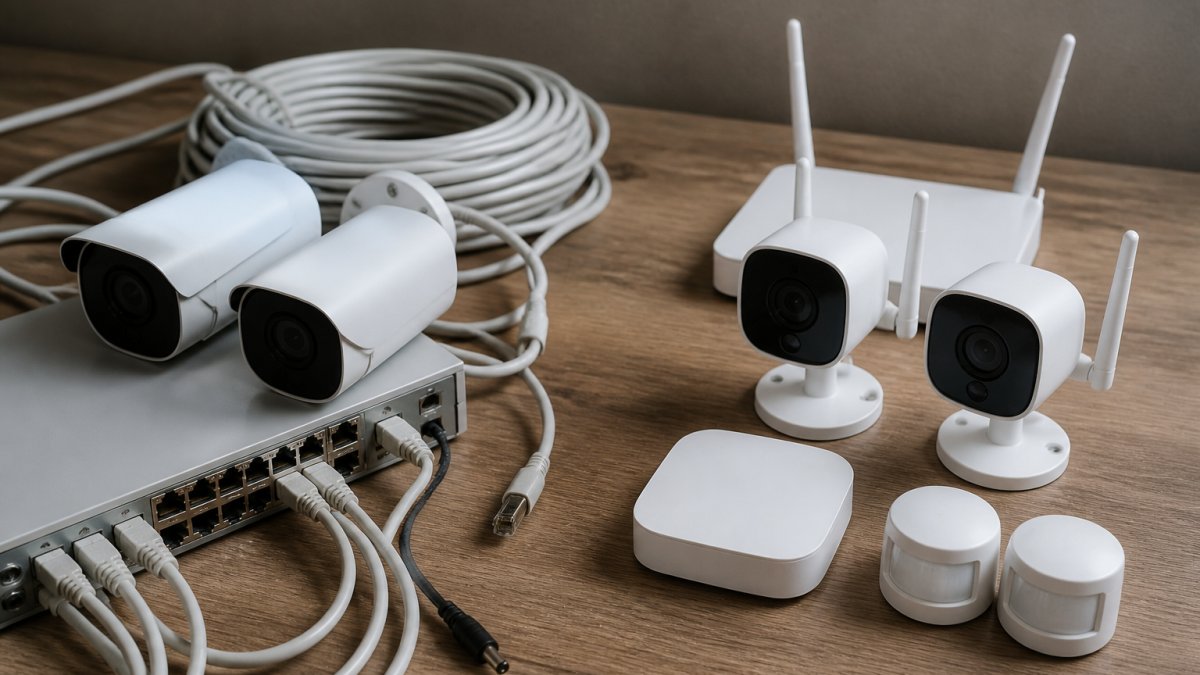
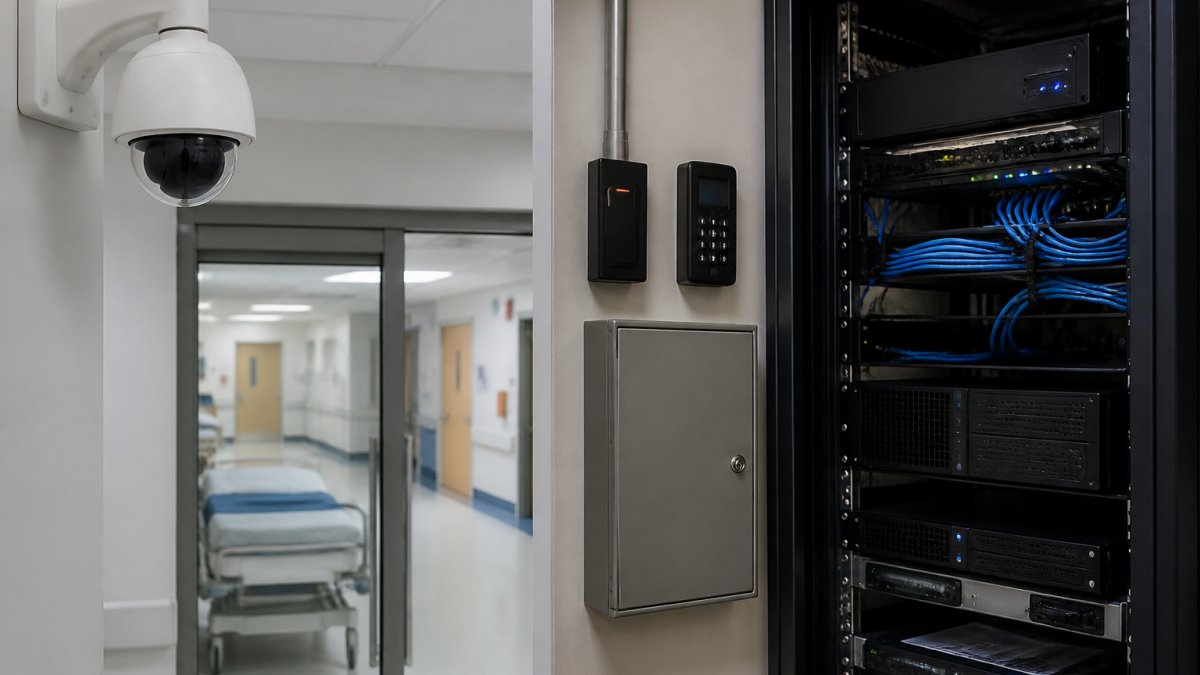
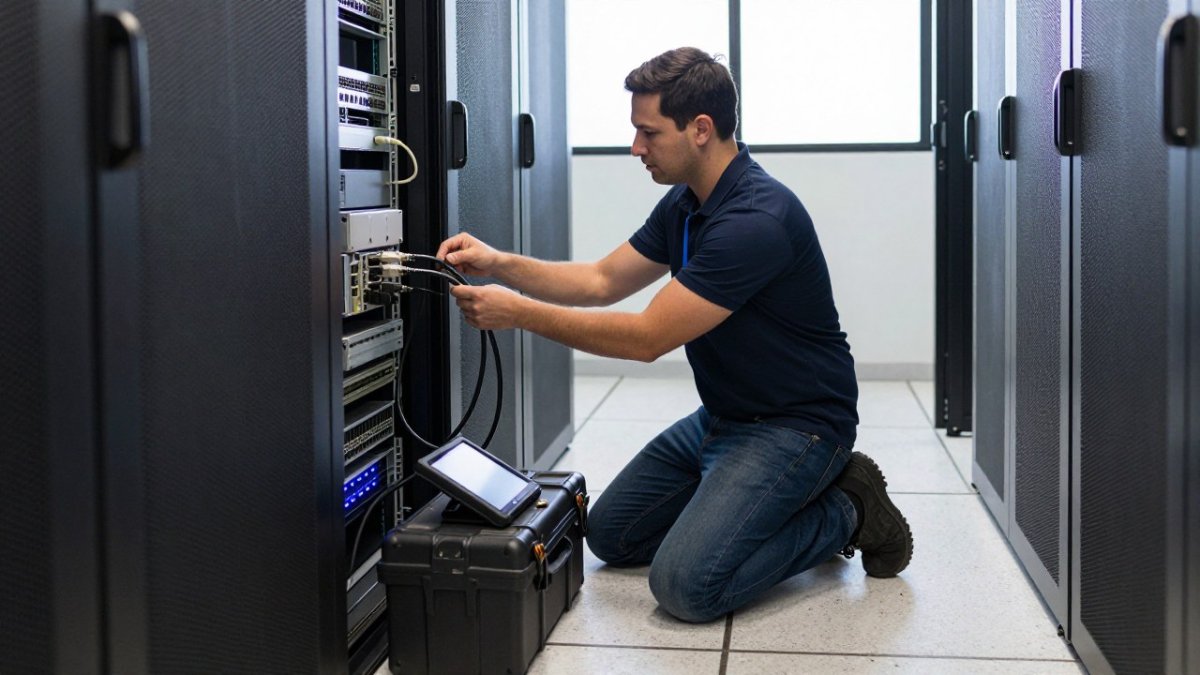
 comparison
Cloud or On-Premise AI Camera Storage: Which Wins?
Last Updated: November 8, 2026
Quick Summary
Choosing cloud vs on-premise AI camera storage comes down to whether you want to own the infrastructure or rent it. Cloud AI camera storage keeps footage on a provider's remote servers and shifts cost to a recurring subscription, while on-premises storage keeps footage on a local server or recorder you buy and maintain. Model both over three to five years with the same camera count, resolution, and retention before deciding.
- Cloud storage sends footage to a remote data center over your internet connection; on-premises keeps it on a local server or recorder.
- A true cost comparison runs three to five years and includes maintenance, power, and drive replacement.
- Cloud-only cameras stop recording to the cloud when the internet connection drops.
- Hybrid systems record locally and synchronize to the cloud when the link is restored.
- Retention should match your risk per zone, not a vendor's default, and old footage should clear on schedule.
Table of Contents
- Cloud vs. On-Premise Video Surveillance Storage: The Core Trade-Off
- AI Security Camera Storage Requirements Most Buyers Miss
- Upfront and Ongoing Costs: What Drives the Bill
- Security, Privacy, and Compliance for Camera Footage
- Bandwidth, Latency, and What Happens When the Network Fails
- Security Camera Footage Retention Best Practices
- Hybrid Cloud Video Surveillance: The Middle Path
- Book a Site Assessment With Mt. Major Tech
- Frequently Asked Questions
Cloud vs. On-Premise Video Surveillance Storage: The Core Trade-Off
Choosing cloud vs on-premise AI camera storage comes down to one question: do you want to own the infrastructure or rent it?
That single decision shapes your costs, your security posture, and how fast you can pull up footage when it matters.
Cloud storage is video footage held on servers operated by a provider and accessed over the internet. On-premises storage is footage held on hardware you own and control on site.
How Cloud Storage Works for AI Cameras
A cloud-connected AI camera captures video, runs analytics, and pushes footage to a remote data center. You log in from anywhere to view live feeds or pull recorded clips.
The trade-off is dependency. Every clip you retrieve travels over your internet connection.
How On-Premise Storage Works
On-premises systems record to a local server or network video recorder on your property. Footage stays inside your network, and staff access it directly. You buy the hardware, and you maintain it.
That control is real. So is the workload: drives fail, firmware needs patching, and storage fills up faster than most buyers expect.
The two storage models differ mainly in where footage lives and who maintains the machinery.
| Option | Where footage lives | Who maintains it |
|---|---|---|
| Cloud storage | Remote data center operated by a provider | The provider |
| On-premises storage | Local server or network video recorder on site | You |
AI Security Camera Storage Requirements Most Buyers Miss
AI cameras generate far more data than standard cameras, and most storage plans ignore it. A conventional camera records a continuous stream. An AI camera also processes frames on the device, stores metadata, and writes event clips.
Here is what a realistic storage plan must account for:
- Resolution and frame rate: higher settings multiply file size per camera per day
- Camera count and growth: plan for the cameras you will add, not just today's
- Retention window: how many days of footage you must keep
- Analytics metadata: event logs and object tags that accompany video
- Redundancy: backup copies for critical zones
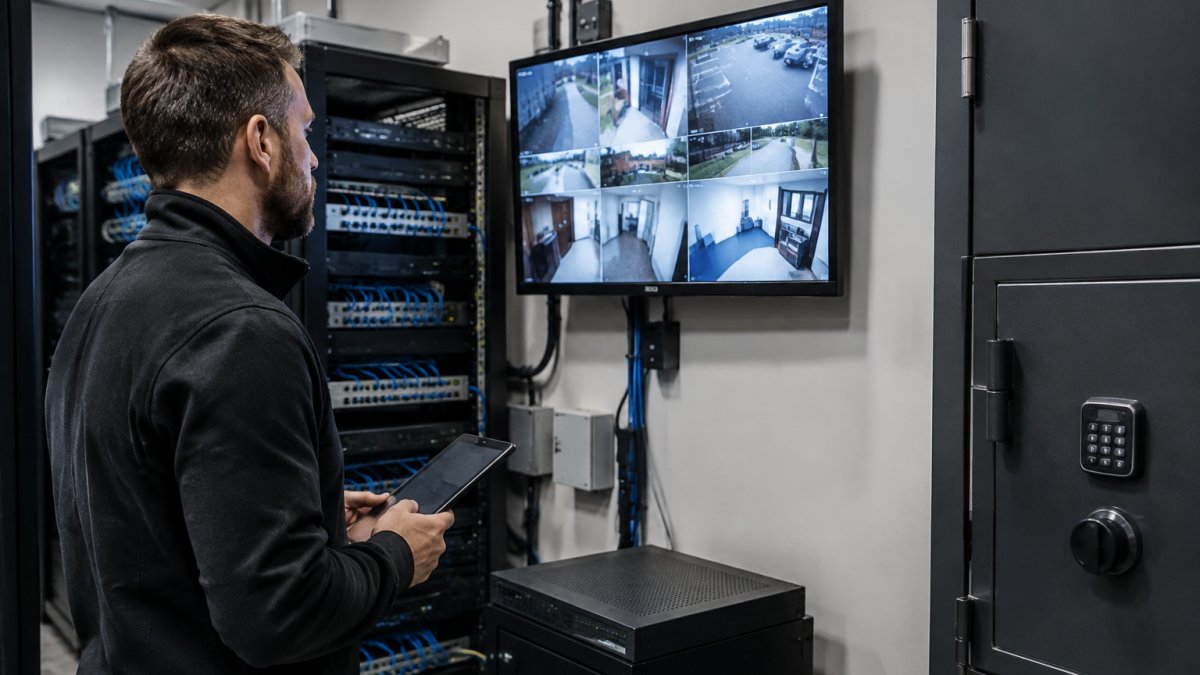
Edge Processing Changes the Math
Edge computing moves AI analysis onto the camera itself. The camera decides what matters and sends only relevant clips to storage. That cuts bandwidth and storage load, and it keeps basic detection working when the network drops.
The catch: edge cameras cost more up front, and their on-board processing has limits. Complex analytics still need server or cloud power.
Upfront and Ongoing Costs: What Drives the Bill
Cloud storage generally shifts cost toward a recurring operating expense, while on-premises storage concentrates cost in up-front hardware and installation followed by ongoing maintenance and power. The mistake most buyers make is comparing only the first invoice.
For a full breakdown of the two models, read our cloud vs on-premise security comparison. If budget is your sticking point, our cost analysis of cloud vs on-premise hospital security walks through the line items, and our step-by-step cloud security ROI guide helps you build the numbers yourself.
What You Pay Up Front
On-premises deployments concentrate cost at installation:
- Recorders and servers: a network video recorder or server sized for your camera count, resolution, and retention window
- Storage drives: surveillance-grade drives, often in redundant arrays, plus spares
- Network gear: switches, cabling, and uplink capacity to carry camera traffic
- Software licenses: video management software, often priced per camera or per channel
- Installation and configuration: labor, mounting, commissioning, and integration with access control or alarms
- Power and cooling: uninterruptible power supplies and, in larger sites, dedicated cooling
Cloud deployments shift most of that to the provider, but not all of it. You still pay for cameras, local network gear, installation, and any edge gateway or local cache device. The provider absorbs servers, storage expansion, and software updates.
What You Pay Every Month
Cloud recurring costs typically include:
- Per-camera subscription: usually priced per camera per month, sometimes tiered by resolution or features
- Storage and retention: longer retention and higher resolution raise the monthly rate
- Egress and retrieval: pulling large clips or exporting evidence can carry bandwidth charges
- Analytics add-ons: advanced AI features are often a separate line item
- Support tier: faster response and extended hours cost more
On-premises recurring costs are less visible but real:
- Maintenance contracts: software support and hardware warranties
- Drive replacement: surveillance drives wear out; budget for replacements over the system's life
- Power: recorders, switches, and cooling run continuously
- Staff time: firmware patching, storage monitoring, and troubleshooting
- Refresh cycle: servers and drives typically need replacement every several years
A Transparent Example
A hypothetical example can help: a site with many cameras and a set retention window would carry a different cost mix under each model.
Watch out: cloud retrieval and export charges can be easy to overlook. Ask any provider to quote these costs at your expected volume before you sign.
The only reliable way to compare is to model both over the same period with the same camera count, resolution, and retention.
Security, Privacy, and Compliance for Camera Footage
Data ownership is the question that decides most compliance conversations. With cloud storage, footage sits on a provider's servers under a contract.
For regulated industries, that distinction matters. Our data governance policies for office surveillance footage covers the controls that satisfy auditors.
Encryption, access control, and audit logs belong in any deployment. Ask your provider where footage is stored, who can retrieve it, and how deletion works.
Bandwidth, Latency, and What Happens When the Network Fails
Cloud systems depend on internet connectivity for every retrieval. A saturated uplink means choppy live views and slow clip downloads. When the connection drops, cloud-only cameras stop recording to the cloud entirely. That is the simple version. The operational version is about capacity math, latency budgets, and what each architecture does in the minutes and hours after a failure.
The Bandwidth Math
Continuous video upload is the load most networks were never sized for. The variables are camera count, resolution, frame rate, compression, and how much is sent to the cloud versus kept locally.
- Continuous cloud recording: every camera streams to the provider around the clock, so uplink demand scales with camera count and resolution.
- Event-based cloud recording: the camera or edge gateway sends only clips triggered by analytics, which cuts steady-state bandwidth sharply but creates bursts when many cameras trigger at once.
- Local recording with cloud sync: the site records everything on site and pushes selected footage or backups to the cloud, spreading load over time.
A common pattern is to keep high-resolution continuous recording local and send lower-resolution live views plus event clips to the cloud. That keeps the uplink manageable without giving up remote access.
Latency and Retrieval Speed
Latency is the delay between a request and the video appearing. For live monitoring, high latency makes PTZ control and real-time response difficult. For investigations, retrieval time matters more than live latency: pulling a multi-hour export from the cloud depends on download speed, while a local recorder serves it over the local network.
Local retrieval is generally faster for large exports, while cloud retrieval is convenient for small clips and remote users. The trade-off is worth measuring against how your team actually uses footage.
What Happens During an Outage
Outage behavior separates the architectures more than any spec sheet:
- Cloud-only cameras: recording stops when the connection drops unless the camera has local storage or an edge cache. Alerting may also stop.
- On-premises recorders: recording continues because the recorder is on site. Remote access is lost until the connection returns.
- Hybrid systems: the local recorder keeps recording and buffering, then synchronizes to the cloud when the link is restored. Alerting can continue locally, and the cloud copy catches up afterward.
Watch out: confirm how long a hybrid system buffers locally during an outage and what happens to footage if the outage outlasts that buffer. Ask whether synchronization is automatic and whether gaps are flagged in the audit log.
Designing for Failure
A resilient design starts with the uplink. Size it for peak concurrent upload, not average, and add headroom for bursts. Keep a local recording path for any camera whose footage has evidentiary or safety value. Test failover before go-live by unplugging the uplink and confirming that recording, alerting, and synchronization behave as promised. Document the recovery time so your team knows what to expect when the network comes back.
Security Camera Footage Retention Best Practices
Retention should match your risk, not a vendor's default. A practical approach:
- Identify which zones hold evidence value, such as entrances, cash handling, and restricted areas.
- Set a retention window per zone based on incident review timelines.
- Automate deletion so old footage clears on schedule.
- Protect critical clips with locked archives before they age out.
- Document a chain of custody for any footage that may become evidence.
A common mistake is keeping everything forever. That inflates storage costs and widens your privacy exposure.
Hybrid Cloud Video Surveillance: The Middle Path
Hybrid cloud video surveillance records locally and backs up to the cloud. You get on-site reliability plus remote access and off-site redundancy. For multi-building campuses, hybrid lets each site record independently while a central team manages everything from one dashboard.
Hybrid designs balance uptime, cost, and control without forcing an all-or-nothing decision.
Book a Site Assessment With Mt. Major Tech
The right deployment depends on your site, your compliance obligations, and how your team works. Mt.
A site assessment can look at camera placement, network capacity, retention needs, and compliance requirements to help identify a suitable storage approach. Contact Mt.
Contact us to schedule your assessment and get a clear recommendation for your property.
The storage decision is easier once someone maps your site and your risks. Mt.
Frequently Asked Questions
Is cloud or on-premise storage better for AI security cameras?
Neither is universally better. Cloud AI camera storage suits distributed sites and small teams that want remote access and no server room, while on-premise storage gives you tighter control of footage and predictable bandwidth use. The deciding factors are site count, retention length, internet reliability, and compliance obligations. A site assessment that measures camera count, resolution, and retention needs will usually point clearly to one model or a hybrid.
Can AI cameras analyze video locally without sending it to the cloud?
Yes. Many AI cameras and network video recorders run analytics on the device itself, a setup called edge processing. The camera detects people, vehicles, or objects and stores or transmits only the clips that matter. This cuts bandwidth and keeps raw footage on site while still delivering alerts and metadata to a management platform. It is one of the main reasons hybrid deployments have become common for larger properties.
How much bandwidth do cloud security cameras need?
Bandwidth depends on resolution, frame rate, and how many cameras stream continuously to the cloud. Continuous cloud recording of many high-resolution cameras can saturate an uplink quickly, which is why edge-based recording and event-only uploads are common. Before committing, measure your available upload speed and plan headroom for peak hours. A qualified integrator can model the load against your actual camera schedule rather than guessing.
How long should a business keep AI security camera footage?
Retention is driven by purpose and policy, not a single universal number. Many organizations keep 30 to 90 days of continuous footage and hold event-triggered clips longer if they relate to incidents or legal matters. Healthcare and legal clients often need longer windows tied to their compliance requirements. Document your retention policy, restrict access by role, and confirm that evidence exports preserve timestamps and chain of custody.