 how-to
How to Troubleshoot Smart Door Lock Connectivity Issues
Table of Contents
- What You'll Need Before You Start
- Step 1: Check the Basics That Cause Most Smart Lock Connectivity Issues
- Step 2: How to Reset Smart Door Lock When It Loses Connection
- Step 3: Troubleshooting Smart Lock Wi-Fi Bridge and Gateway Status
- Step 4: Fix Network Frequency and Security Protocol Conflicts
- Step 5: Smart Lock Firmware Update Guide
- Common Mistakes to Avoid When Troubleshooting Smart Door Lock Connectivity Issues
- Conclusion: When to Call a Professional
- Frequently Asked Questions
Last Updated: September 29, 2026
What You'll Need Before You Start
A smart lock that won't connect is one of the most frustrating home tech problems you can face. The lock worked yesterday; today it's offline.
Before you start, gather these items:
- Your phone with the lock's mobile application installed
- Fresh batteries of the correct size and type
- Your Wi-Fi network name and password
- The lock's model number and manual
- A small Phillips-head screwdriver
Step 1: Check the Basics That Cause Most Smart Lock Connectivity Issues
Start with the simplest checks. A smart lock with weak batteries drops off the network long before it dies completely, causing delayed responses and random offline status.
Battery voltage and power cycle
Pull the battery pack and test each cell, one weak battery drags the whole pack down. Replace all batteries at once with the maker's specified type, check contacts for corrosion, and reinsert firmly until it clicks. Then power cycle: remove the batteries, wait thirty seconds, and put them back to force the lock to search for the network again.
Indicator lights and app status
Watch the indicator light during startup. Most locks flash a pattern that tells you what's happening.
- Solid green: connected and ready
- Blinking amber: searching for the gateway
- Rapid red: low battery or failed authentication
- No light: no power at all
Step 2: How to Reset Smart Door Lock When It Loses Connection
Sometimes a reset is the fastest fix, but most people reach for the wrong one. A soft reset restarts the lock and keeps your settings; a factory reset wipes everything, including network credentials and user codes.
Try the soft reset first:
- Remove the battery pack
- Hold the reset button for five seconds
- Reinsert the batteries while holding the button
- Release when the indicator light blinks
- Wait for the lock to rejoin the network
Step 3: Troubleshooting Smart Lock Wi-Fi Bridge and Gateway Status
The gateway or bridge connects your lock to the internet. If it's down, every lock connected to it goes offline at once, the single most useful diagnostic clue in smart lock troubleshooting: one lock offline usually means a lock problem, but two or more offline at once almost always means the gateway or the network behind it.
How the gateway actually connects
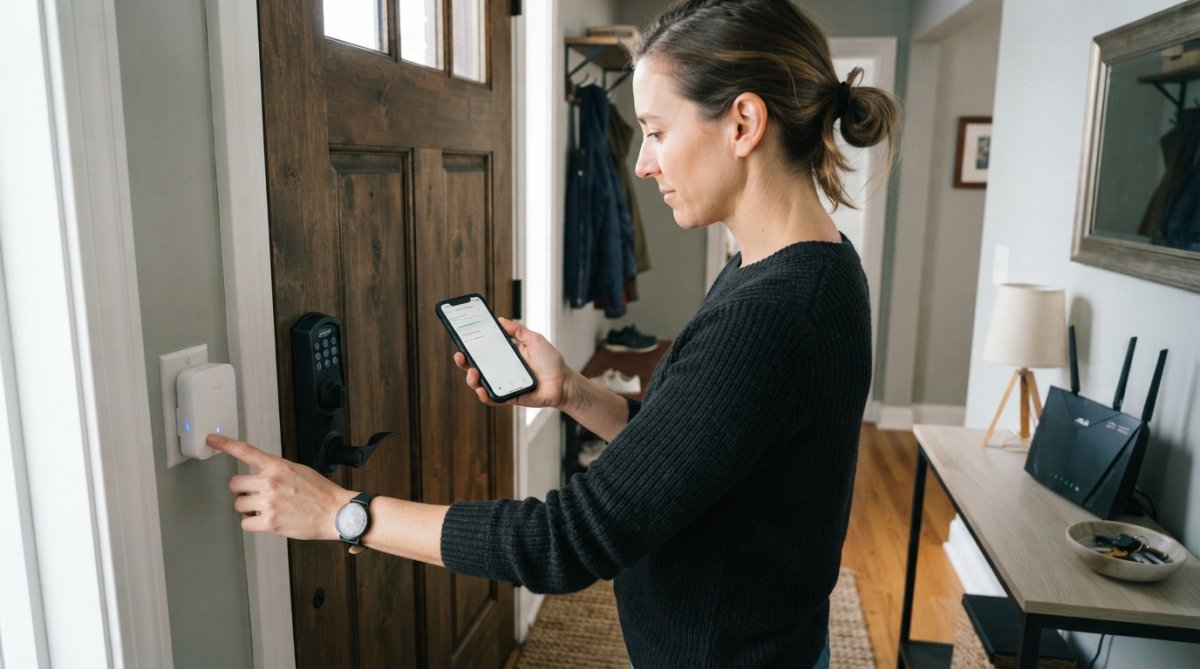
Most battery-powered smart locks don't speak Wi-Fi directly. They use a low-power radio protocol, Zigbee, Z-Wave, Thread, or a proprietary 900 MHz or 2.4 GHz link, to reach a plug-in bridge, which translates that traffic to your Wi-Fi router. A failure at either hop looks identical in the app: the lock shows offline.
- Lock-to-gateway hop: short range, low power, easily blocked by metal and masonry. This is where most "one lock is offline" cases live.
- Gateway-to-router hop: standard Wi-Fi. This is where "all locks are offline" cases live.
- Router-to-internet hop: your ISP and modem. If your other smart devices are also offline, look here first.
Reading gateway diagnostics like a technician
Open the gateway's app or dashboard and confirm it shows online. If not, power cycle it: unplug, wait a full minute, and plug it back in, many bridges hold a stale DHCP lease a quick unplug won't clear.
- Connected device count. If the gateway reports fewer locks than you own, the missing ones are the problem, not the gateway.
- Per-device signal strength or RSSI. Anything weaker than roughly -85 dBm is marginal and will drop intermittently.
- Last-seen timestamp per lock. Minutes ago means dropping in and out; days ago means it never reconnected after a reset or power event.
- Gateway firmware version. Outdated bridge firmware can fail to hand off newer locks correctly.
Gateway placement and signal strength
Placement matters more than most people realize. A gateway buried in a basement or behind a metal door will struggle to reach a lock twenty feet away. Low-power lock radios are far less forgiving than Wi-Fi.
- Keep the gateway within thirty feet of the lock, with as few walls between them as possible
- Avoid metal doors, mirrors, foil-backed insulation, and thick masonry
- Raise the gateway off the floor, a shelf at chest height outperforms an outlet near the baseboard
- Point antennas upright and away from the router's antennas to reduce 2.4 GHz self-interference
- Don't stack the gateway on the router or a metal network switch
Isolating the fault: lock, gateway, or router
Work outward from the lock:
- Only one lock offline? Power cycle that lock. If it reconnects and drops again within a day, suspect range or a failing lock radio.
- All locks offline, gateway shows online? The gateway lost its Wi-Fi link. Re-enter the Wi-Fi password in the gateway app, routers that changed security mode or band settings will silently reject the old credentials.
- All locks offline, gateway shows offline? Power cycle the gateway, then confirm it pulls an IP address in your router's client list.
- Gateway online but nothing reaches the internet? Test another device on the same network. If it's also down, the issue is your modem or ISP, not the lock system.
Step 4: Fix Network Frequency and Security Protocol Conflicts
Many smart locks only work on the 2.4GHz band. They can't see a 5GHz network at all, and some routers hide the 2.4GHz band behind a combined name. This is the most common non-battery cause of a lock that refuses to pair, and the easiest to misdiagnose because your phone is almost certainly on 5GHz.
Why 2.4GHz vs 5GHz breaks smart locks
The two bands aren't just different speeds, they're different physics. The 2.4GHz band travels farther and penetrates walls better, exactly what a low-power lock radio needs; 5GHz is faster but shorter-range. Most manufacturers ship 2.4GHz-only radios because the range and power budget fit a battery-powered device. The lock isn't broken; it has no 5GHz antenna.
- Log into your router's admin page (commonly 192.168.1.1 or 192.168.0.1, or the address printed on the router label).
- Find the wireless settings and disable band steering or "Smart Connect."
- Give the 2.4GHz band its own unique network name (SSID), for example, add "-24" to the end.
- Keep the 5GHz name separate for your phones and laptops.
- Reconnect the lock to the 2.4GHz name only.
Security protocol compatibility (WPA2 vs WPA3)
Security settings trip up locks too. Older locks may not support WPA3. If your router runs WPA3-only mode, the lock can't authenticate, and the app often reports a generic "network not found" or "incorrect password" error rather than a security mismatch. Re-typing the password won't help.
Switch the 2.4GHz band to one of these modes:
-
WPA2-Personal (AES), the safest bet for older lock hardware
-
WPA2/WPA3 mixed mode, supports both new and old devices, and is what most current routers default to
-
WPA3-only, avoid unless the lock's manual explicitly lists WPA3 support
-
MAC address filtering, turn it off while you set up, then re-enable and add the lock's MAC address if you want to keep it on
-
Hidden SSID, many locks can't join a network that doesn't broadcast its name; unhide it during setup
-
Client isolation / AP isolation, this prevents devices on the same network from talking to each other, which can break the lock-to-gateway link
-
Captive portal or guest network, locks can't complete a web login page, so never put one on a guest network
-
DHCP lease exhaustion, confirm the lock actually received an IP address in the router's client list
Verifying the fix
After you reconnect, don't trust the app's "connected" message. Confirm the lock appears in your router's client list with an active IP address, then lock and unlock it from the app twice. A lock that drops on the second command is still on a marginal link, revisit gateway placement in Step 3.
Step 5: Smart Lock Firmware Update Guide
Firmware fixes connectivity bugs, and outdated firmware is a common culprit. Updates improve how locks handle weak signals and new routers.
- Open the app and go to device settings
- Tap firmware or software update
- Keep your phone within a few feet of the lock
- Don't lock or unlock during the update
- Wait for the confirmation message
Common Mistakes to Avoid When Troubleshooting Smart Door Lock Connectivity Issues
Most failed fixes come from skipping steps or guessing:
- Resetting before checking the battery. You'll wipe your settings for nothing.
- Ignoring the gateway. If several locks fail at once, the gateway is the problem, not the locks.
- Using the 5GHz band. The lock can't see it. Use 2.4GHz.
- Forcing WPA3 on an older lock. Drop to WPA2 or mixed mode.
- Interrupting a firmware update. This can permanently damage the device.
Conclusion: When to Call a Professional
Some problems sit beyond a homeowner's reach. If you've replaced batteries, reset the lock, checked the gateway, split your Wi-Fi bands, and updated firmware, and the lock still won't stay online, the issue may be your network hardware or the lock itself.
Frequently Asked Questions
Why is my smart lock not connecting to my Wi-Fi network?
Most smart lock connectivity issues trace back to a few common causes: low battery voltage, a gateway or bridge that has gone offline, or the lock trying to connect to a 5GHz band when it only supports 2.4GHz. Start by replacing the batteries, then power cycle the bridge and confirm your router is broadcasting a 2.4GHz network. If the lock still won't connect, check that your Wi-Fi password hasn't changed and that MAC address filtering isn't blocking the device.
How do I reset my smart door lock when it loses connection?
A soft reset (removing batteries for 30 seconds) often restores connectivity without wiping your settings. If that fails, perform a factory reset: hold the reset button on the interior assembly for 5-10 seconds until the indicator light flashes, then re-add the lock in your mobile application. A factory reset erases stored network credentials and user codes, so have your Wi-Fi password and admin access ready before you begin.
Does a weak Wi-Fi signal affect smart lock performance?
Yes. Smart locks need a stable signal to communicate with the gateway or cloud server for remote access, authentication, and syncing. A weak signal causes latency, offline status, and failed unlock commands. If your lock sits far from the router, add a bridge closer to the door or reposition the gateway. Walls, metal doors, and interference from other 2.4GHz devices can all reduce signal strength.
How often should I update my smart lock firmware to prevent connectivity drops?
Check for firmware updates every two to three months, or whenever your mobile application notifies you. Manufacturers release updates to fix bugs, improve encryption, and patch security vulnerabilities. An outdated firmware version can cause pairing failures, authentication errors, and dropped connections. Most locks update automatically through the app when connected, but manual checks catch missed releases.