 listicle
How to Upgrade Remote Work Security on a Budget
Quick Summary
Remote work security can be upgraded on a budget by first enabling automatic updates, device encryption and a password manager, then securing the home router. Adding multi-factor authentication and low-cost physical measures like a deadbolt covers most remaining everyday risks without a dedicated IT department.
- Enable automatic updates on every laptop, phone and router, since unpatched systems are an easy entry point.
- Turn on full-disk encryption; BitLocker and FileVault are built in at no added cost.
- Change the default router administrator password and move personal devices to a separate guest network.
- Start MFA with the free authenticator-app option on email and cloud storage, then add hardware keys for high-risk accounts.
- A deadbolt with a reinforced strike plate typically runs under $50 combined, using longer screws into the wall framing.
Table of Contents
- Why Remote Work Security Gaps Cost More Than Upgrades
- Remote Work Cybersecurity Best Practices You Can Apply Today
- Affordable Multi-Factor Authentication Solutions Worth Adopting
- Low-Cost Physical Security and DIY Upgrades for Home Offices
- Smart Access Control Installation Services: When DIY Stops Making Sense
- A Tiered Security Checklist for Non-Technical Remote Workers
- Booking a Security Assessment for Your Remote Setup
- Frequently Asked Questions
How to Upgrade Remote Work Security on a Budget
Last Updated: November 4, 2026
Why Remote Work Security Gaps Cost More Than Upgrades
Most remote workers assume their home setup is safe enough. The reality is that a single unsecured laptop, a reused password or an open home network can expose an entire business.
Remote work security is not only about software. It also covers physical access, network configuration and the habits of the people doing the work.
This guide walks through practical, budget-conscious upgrades. We focus on steps that a small team can complete without a dedicated IT department, and we flag where professional help makes sense.
Remote Work Cybersecurity Best Practices You Can Apply Today
Start with the basics. Most remote-work incidents trace back to a handful of preventable issues: outdated software, weak or reused passwords, and unencrypted devices. Fixing those three areas closes the majority of everyday risk.
A common mistake is buying advanced tools before the fundamentals are in place. Lock down the basics first, then add layers as your budget allows.
Free Software Fixes: Updates, Password Managers and Encryption
Enable automatic updates on every laptop, phone and router. Unpatched operating systems are one of the easiest entry points for attackers, and the update itself costs nothing.
Next, adopt a password manager. Many password managers offer free tiers that generate unique passwords for each account, so employees no longer need to reuse credentials across services.
Turn on full-disk encryption as well. BitLocker on Windows and FileVault on macOS are built in at no added cost. If a laptop is lost or stolen, encryption keeps the stored data unreadable.
Securing Your Home Network Without New Hardware
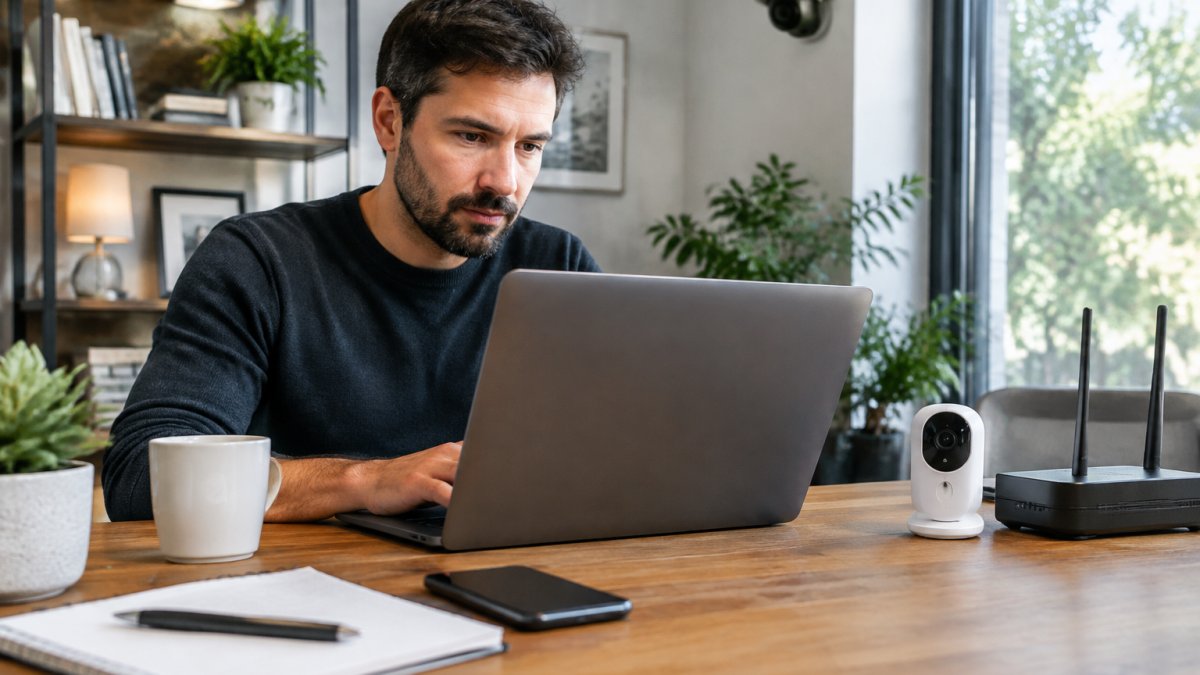
Your home router is the front door to your work environment. Change the default administrator password, which is often printed on the device itself. Then confirm that the router is running current firmware.
Create a separate guest network for personal devices such as smart speakers, streaming boxes and visitors' phones. Keeping work equipment on its own network limits what a compromised household device can reach.
Finally, check that your Wi-Fi uses WPA3 or, at minimum, WPA2 encryption. Avoid open networks and older WEP settings entirely.
Affordable Multi-Factor Authentication Solutions Worth Adopting
Multi-factor authentication (MFA) requires a second proof of identity beyond a password. It is one of the most effective controls a small team can deploy, and the cost-effective path is to match the factor type to the account's risk rather than buying the strongest option for everyone.
Match the Factor to the Account
Authenticator apps are the most accessible starting point. Most work with the accounts employees already use, require no additional hardware, and cost nothing beyond the phone people already carry. For higher-risk accounts such as email, payroll and financial systems, hardware security keys offer stronger protection against phishing, though they add a per-person cost that depends on the model and quantity. Check Mt.
SMS codes are better than nothing but are the weakest common factor because of SIM-swap and interception risks. Treat them as a stopgap for low-risk accounts, not the default for email or cloud storage.
A Rollout Order That Fits a Small Budget
Start with email and cloud storage, since those accounts often unlock everything else through password resets. Then expand to the finance and payroll systems, and finally to any line-of-business app that holds client data. This order front-loads the accounts whose compromise would cascade into the most damage.
For a team without a dedicated IT department, the practical sequence is:
- Turn on the free authenticator-app option for every employee on email and cloud storage.
- Buy hardware keys only for the two or three people who can approve payments or reset other users' credentials.
- Enable MFA on the router's administrator login and on any remote-access tool the team uses.
Watch out: if you enable MFA without setting up backup codes or a second key, a lost phone can lock an employee out of the very account they need to recover, store backup codes in the password manager, not on the device itself.
The Hidden Cost: Recovery and Administration
The purchase price is rarely the expensive part. The recurring cost is recovery, resetting a lost factor, re-enrolling a new phone, and keeping an inventory of who holds which key.
The administrative burden, rather than the hardware, often determines whether MFA sticks. Assign one person to own enrollment and recovery, document the process in plain language, and review the list of enrolled users quarterly. That discipline costs nothing and prevents the slow drift where new hires never get enrolled and departed staff keep their access.
Low-Cost Physical Security and DIY Upgrades for Home Offices
Digital protection means little if someone can walk into the room where the laptop sits. Physical security is frequently overlooked in remote work planning, yet it is one of the easiest areas to improve on a budget, and most guides skip it in favor of software. This section covers the low-cost physical deterrents a non-technical worker can install in an afternoon.
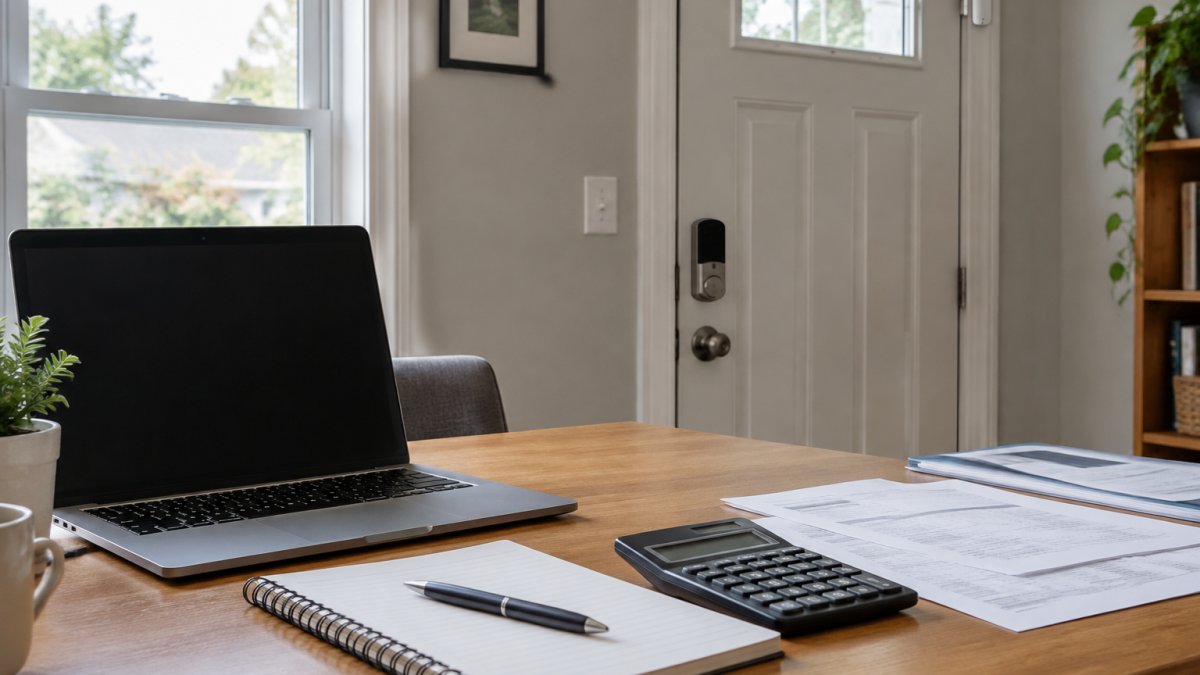
Harden the Door First
Start with the door, because it is the cheapest high-impact upgrade. For guidance on smart entry options for remote workspaces, see smart entry options for remote workspaces.
If the office is a room inside a shared home, a keyed entry knob or a simple door lock is enough to keep housemates and visitors out of the workspace. Position the desk so the screen cannot be read from windows or the doorway; a privacy screen filter on the monitor can block shoulder-surfing and window sightlines at a fraction of the cost of relocating the desk.
Cheap Sensors and Locking Storage
Consider a basic door or window sensor paired with a smart home hub. These devices are generally inexpensive and alert you to unexpected entry through a phone notification.
Keep sensitive paper documents in a locking cabinet or a lockbox, and shred anything that contains client or payroll information. For best practices on managing access credentials, see best practices for managing access credentials. A cross-cut shredder is the relevant spec; strip-cut models are cheap but reassemble too easily.
What DIY Cannot Do
Watch out: physical deterrents slow an intruder but do not stop a determined one, and a deadbolt on a hollow-core door gives a false sense of security, check the door's construction before assuming the lock is the weak point. DIY measures also leave no audit trail, so once a business needs to know who entered a shared space and when, the work moves beyond what a homeowner can install safely.
A Budget Snapshot
For a typical home office, the cost-effective physical stack is: a deadbolt and reinforced strike plate (under $50), a privacy screen filter (around $20), one or two entry sensors ($15-$30 each), and a cross-cut shredder ($40-$80). That keeps the total in the low hundreds of dollars while covering the most common physical risks, the same risks most software-focused guides never mention.
Smart Access Control Installation Services: When DIY Stops Making Sense
DIY measures handle many everyday risks, but they have limits. Once a business needs to manage who enters a shared space, track access history or integrate locks with a monitoring system, the work becomes more complex than most teams can manage safely.
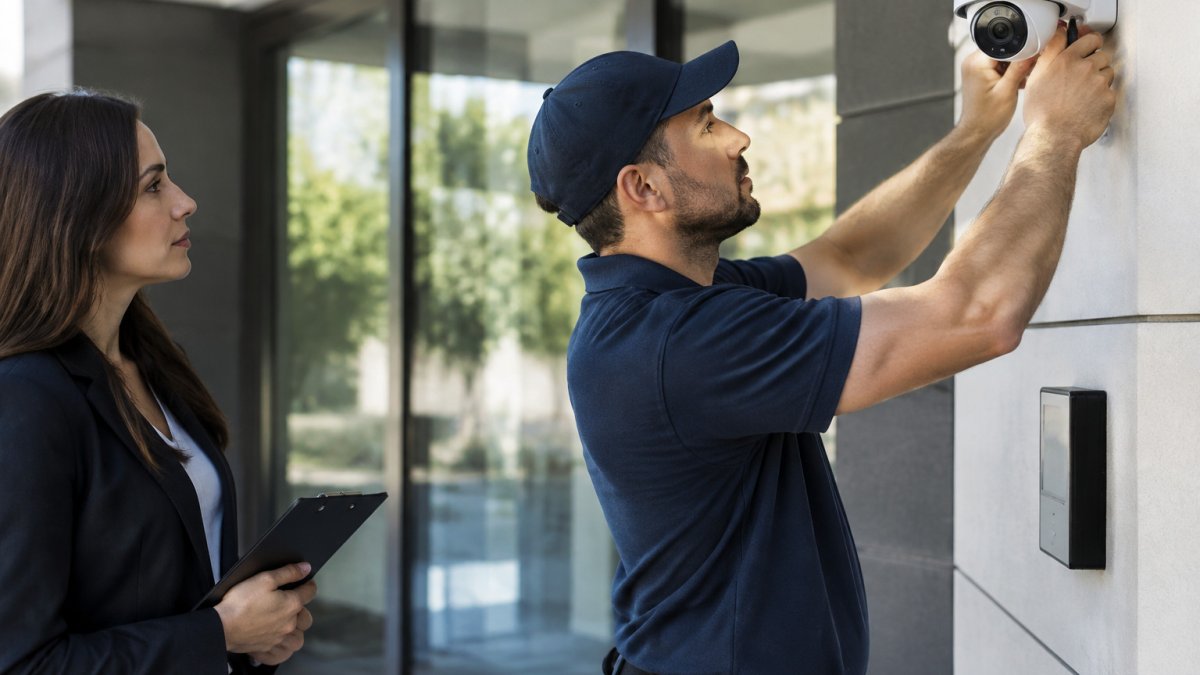
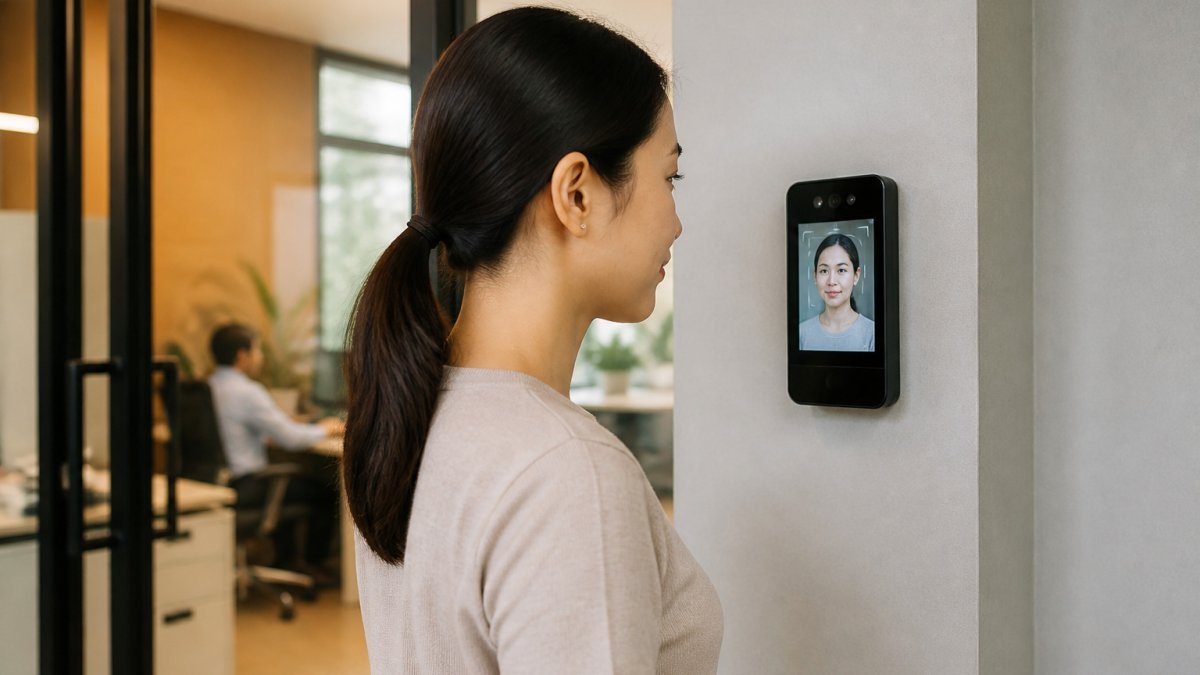
Smart access control installation services bring together keypads, credential management, audit logs and integration with existing systems. Major Tech provides smart access control installation for residential and commercial clients, and can integrate access control with surveillance and alarm systems. Contact Us to discuss whether your setup has reached that point, or review our Services page for an overview of what we install. If you are weighing a door hardware change first, our guide on how to upgrade legacy door hardware to smart systems explains the options.
The breakeven point depends on your size, number of entry points and compliance obligations. If you are managing credentials for more than a handful of people across multiple doors, professional installation usually reduces long-term risk and administrative effort.
A Tiered Security Checklist for Non-Technical Remote Workers
Not everyone on a team has technical training, so a simple checklist helps. Work through these items in order.
Tier 1: Essentials (no cost)
- Enable automatic software and system updates
- Turn on device encryption
- Change default router and device passwords
- Lock your screen when stepping away
Tier 2: Low-cost upgrades
- Install a password manager and generate unique passwords
- Enable multi-factor authentication on email and cloud accounts
- Create a separate guest network for personal devices
- Add a deadbolt and secure the office door
Tier 3: Professional support
- Review access control needs for shared or multi-user spaces
- Request an assessment of integrated surveillance and alarm options
Complete each tier before moving to the next. Most small teams can finish Tiers 1 and 2 in a single afternoon.
The checklist groups the upgrades into three tiers, each with the cost level the article gives for it.
| Tier | Items | Cost |
|---|---|---|
| Tier 1: Essentials | Automatic updates, device encryption, changed default passwords, screen lock | No cost |
| Tier 2: Low-cost upgrades | Password manager, MFA on email and cloud, guest network, deadbolt on office door | Low cost |
| Tier 3: Professional support | Access control review, surveillance and alarm integration assessment | Professional service |
Booking a Security Assessment for Your Remote Setup
If you have worked through the checklist and still have open questions, a professional review can clarify your priorities. An assessment looks at your network, devices, physical space and access requirements, then recommends the upgrades that deliver the most protection for the money.
Contact us to discuss your remote setup and next steps.
Frequently Asked Questions
What are the most cost-effective security measures for remote employees?
The highest-value, lowest-cost measures are enabling automatic software updates, using a company-approved password manager, turning on full-disk encryption and requiring multi-factor authentication on email and VPN accounts. Most of these cost nothing beyond existing licenses or built-in operating system features. Physical steps such as locking the home office door, positioning screens away from windows and using a privacy screen filter add protection for little money. Start with the free controls, then add paid hardware only where a specific risk justifies it.
How can small businesses improve remote work security on a budget?
Small businesses can focus on a short list of controls: a written remote work policy, a shared password manager, mandatory multi-factor authentication, and a rule that work data stays on managed devices. Staff training on phishing takes a few hours and prevents many incidents. Where a business needs a VPN, many providers offer per-user plans, so compare the monthly cost against the number of remote staff rather than paying for enterprise tiers you do not need. Review access rights each quarter so former staff and old contractors are removed promptly.
Is multi-factor authentication enough to secure remote access?
Multi-factor authentication blocks a large share of account takeover attempts, because a stolen password alone is no longer enough. It is not a complete defense, however. Attackers can still phish one-time codes or exploit unpatched devices. Pair multi-factor authentication with current software patches, encrypted disks, and a VPN or zero-trust access tool for internal systems. Prefer app-based or hardware security key methods over SMS codes where your accounts allow it, since SMS is more exposed to interception.
What hardware upgrades are necessary for remote office security?
Few hardware upgrades are strictly necessary, but three are often worth the spend: a business-grade router with separate guest and work networks, a USB security key for administrator accounts, and a lockable cabinet or drawer for paper records and devices when not in use. A surveillance camera or smart lock can help if the home office holds valuable equipment or client data, and cloud-connected models should be chosen with a clear plan for footage retention and backup. Buy only what your risk assessment supports.